Sorting the Display
Sorting allows you to display an ordered view of data.
To sort the display
- Open your Analysis View.
- Click
 .
. - Click the Move to Rows icon
 next to the filter you want to use to create a row, then expand it as needed.
 - Click next to Promotion Media and Product to remove them from the view.
- Next to the Time filter, click the Move to Columns icon
 to make Time a column.
 - Click Time to open a tree displaying the dimension members.
- Expand Time by clicking
 next to it, and select 2012, then click OK.
 - Click Measures in the column section, and deselect Unit Sales and Store Cost.
- Click OK, then click OK again.
- Click to activate Zoom on Drill. When active, its tool bar button looks like this
 .
. - Click to zoom into USA.
- Clear Zoom on Drill by clicking .
- Click the navigation table’s Expand All Members button
 .
. - Click the Edit Display Options button
 and make sure Show all parent columns, Sort across the cube hierarchy, and Start sorting in descending order are selected, then click OK.
 - Click the navigation table’s Expand All Members button again.
- Click the Sort button
 next to 2012.
The navigation table displays the top stores for the year ordered by dollar sales amount.
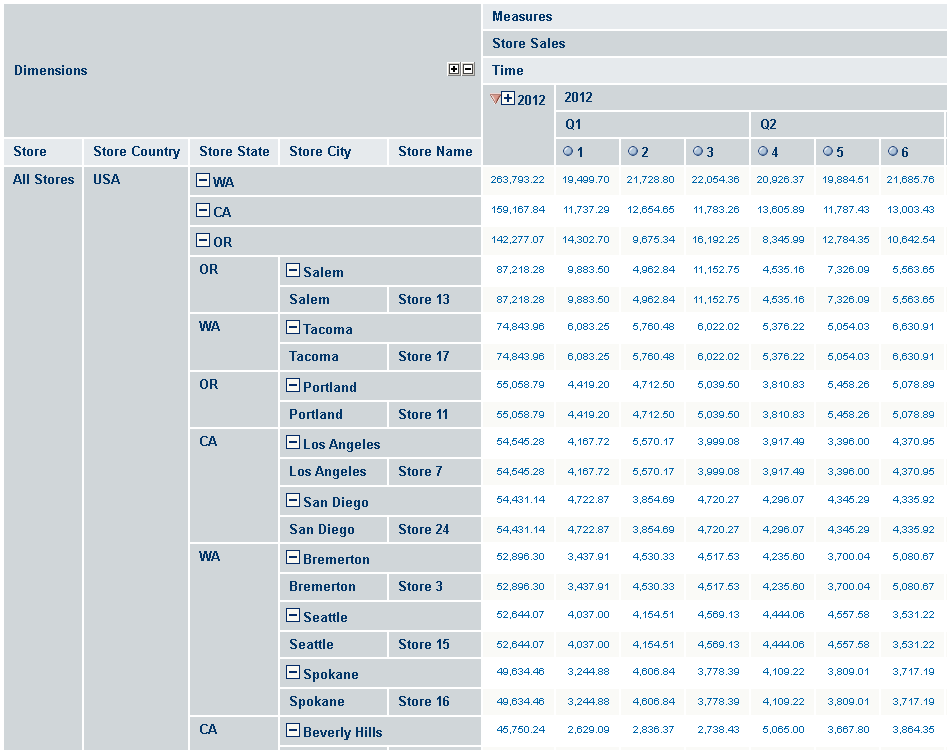
Figure 1 Sorting the Top West Coast Stores in Sales