Tutorial: working with the AI assistant
What you do: ask the assistant for two changes to a report, check them, take one back, and ask it a question about the report. What you learn: how the assistant proposes a change, how to read a proposal before applying it, and how to undo what it did. Time: about 10 minutes.
Before you start
- The assistant inside Jaspersoft Desktop must be set up with your model service (Anthropic, OpenAI, Google, Ollama…): see Designing reports with AI. An assistant in another application, through MCP, works on the same report the same way, but you chat with it there.
- Open
Tutorials/Sales by Country.jrxmlin the Samples workspace (see Totals and grouping). - Show the assistant's column: Show AI Assistant, the button with the stars at the right of the title bar. To give the page more room, hide the explorer: Hide Explorer, the first button of the title bar.
The assistant reads the report you have on show, and the workspace around it: you do not need to explain which report, or paste anything.
A model does not answer twice in the same words: what you get will not be exactly what the pictures show, but it will do the same things.
1. Ask for a change
Type in the box at the bottom of the column:
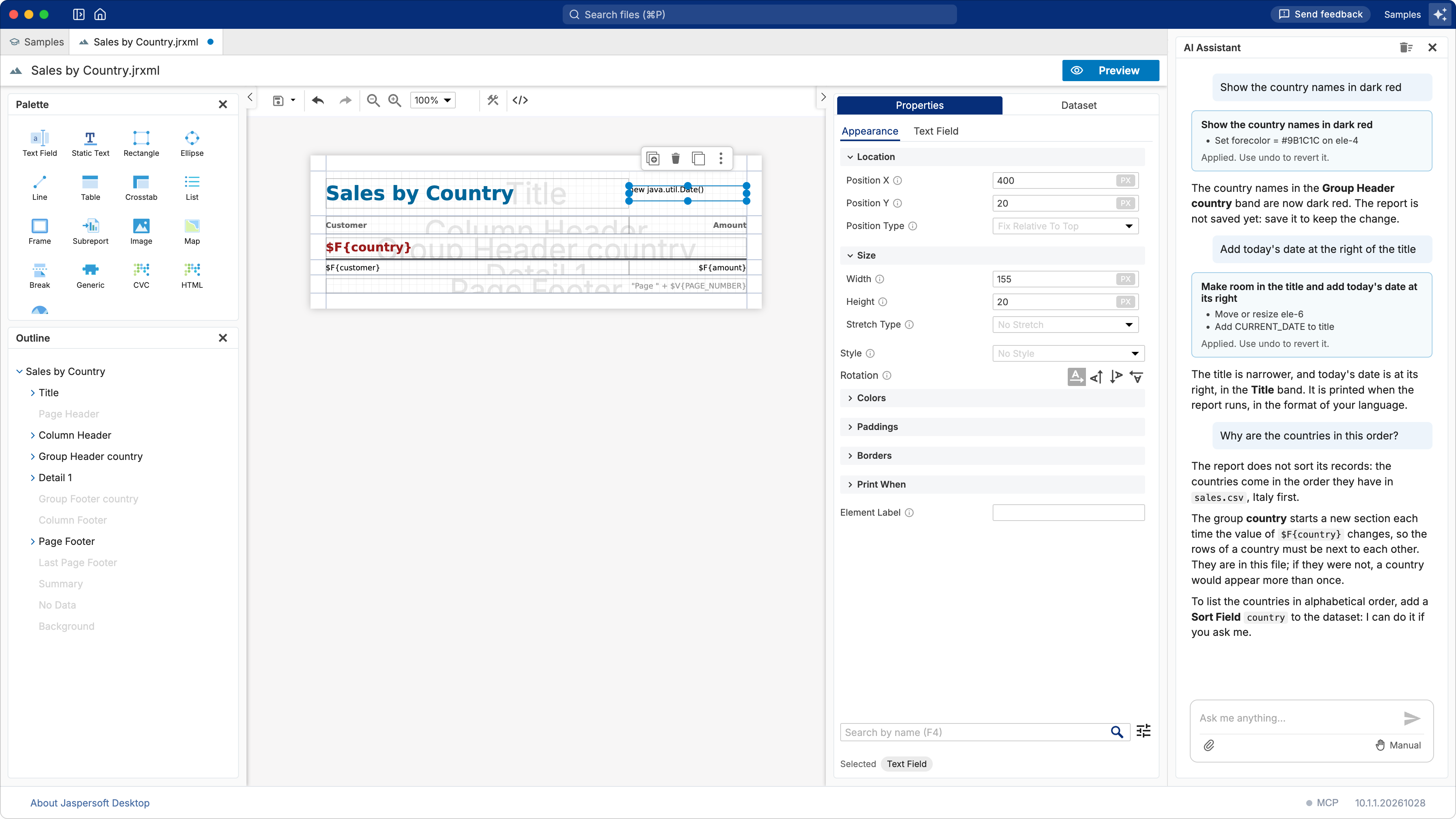
Show the country names in dark red
and press Enter. The assistant does not change the report at once: it proposes the change, in a card that says what it will do.
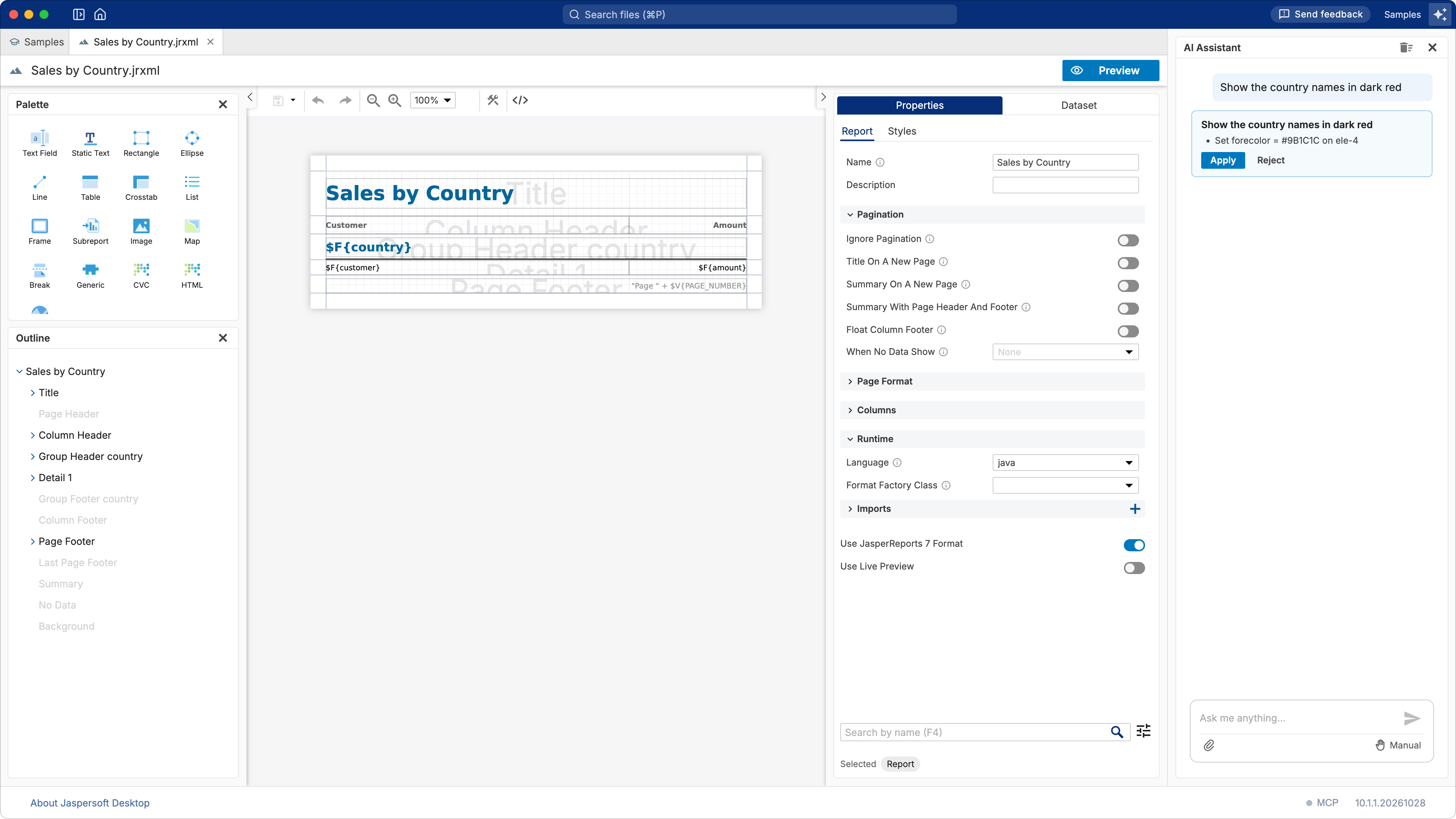
Read it before you click. Here it sets the text color (forecolor) of one element, ele-4: the
$F{country} text field of the Group Header country band. Each element of the report has such
an id; the assistant uses them to say exactly what it changes.
Click Apply. The country names on the page turn dark red, and the assistant says what it did. Reject would have left the report as it was.
2. Take it back
Every change the assistant makes is a change of the designer like yours: click Undo in the toolbar (or ⌘Z, Ctrl+Z on Windows and Linux) and the names are blue again; Redo brings the change back. Keep it: click Redo.
Nothing is saved until you save: the assistant changes the report on show, never the file behind your back.
3. A change in several steps
Ask:
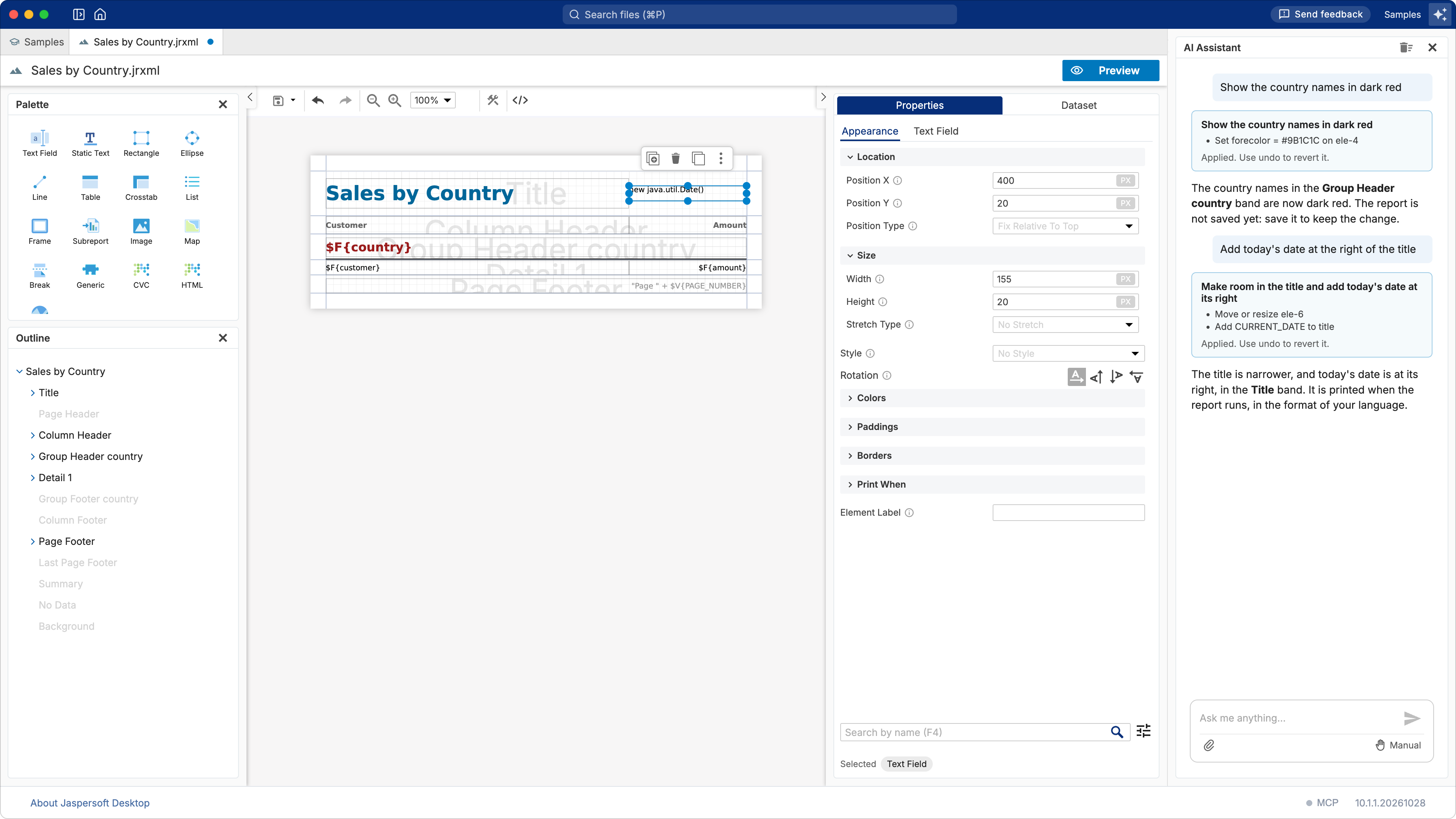
Add today's date at the right of the title
This needs two changes, and the card lists both: the title made narrower (Move or resize
ele-6), to leave room, and the date added in the Title band (Add CURRENT_DATE). One
Apply makes them together, and one Undo takes them back together.
4. Ask a question
The assistant answers questions about the report as well, without changing it:
Why are the countries in this order?
It explains that the report does not sort its records, so the countries come in the order of the file, and how to sort them. A question gets an answer, not a proposal; ask for the change if you want it ("Sort the countries alphabetically").
Save the report to keep the two changes.
Asking well
- Name what you see. "The amounts in the detail band", "the title", "the second column of the table": the assistant reads the same report you see.
- One thing at a time is easier to check than five in one request.
- Ask it to check. "Does this report compile?", "Why does the preview fail?": it can run the report's check and read the error.
- It knows the data. It can read the fields of a data adapter, write a query, add fields, parameters and variables, make a chart or a table.
Manual or automatic
Under the box, Manual means what you saw: every change is proposed, and waits for Apply. Switch it to Edit automatically and the assistant changes the report without asking, each change one step of Undo. What Undo cannot take back is always asked for, whatever the mode: saving, creating files and folders or data adapters, running a query on your data, changing a report unit of JasperReports Server.
What you learned
- The assistant proposes changes; read the card, then Apply or Reject.
- What it changes, Undo takes back, like any change of yours; nothing is saved until you save.
- One request can need several changes: they are applied and undone together.
- A question gets an answer, a request for a change gets a proposal.