Activating Jaspersoft Desktop
This guide explains how to activate Jaspersoft Desktop, keep your license up to date, and see your licenses and computers in the License portal.
Before you start
You need a Jaspersoft Community account (community.jaspersoft.com). You can sign in with your community password or with Sign in with HCL software. Your license is linked to this account.
A few terms used in this guide:
| Term | What it means |
|---|---|
| License | Your right to use Jaspersoft Desktop: a free trial or an extended trial. |
| Single user license | A license for one person: you. Every trial is a single user license. |
| Computer | You can use your license on a few computers (usually 3), for example a desktop and a laptop. The License portal shows how many more you can add. |
| License file | A .jslic file stored on your computer. Jaspersoft Desktop checks it at every start, so it works without an internet connection. |
First activation (with internet connection)
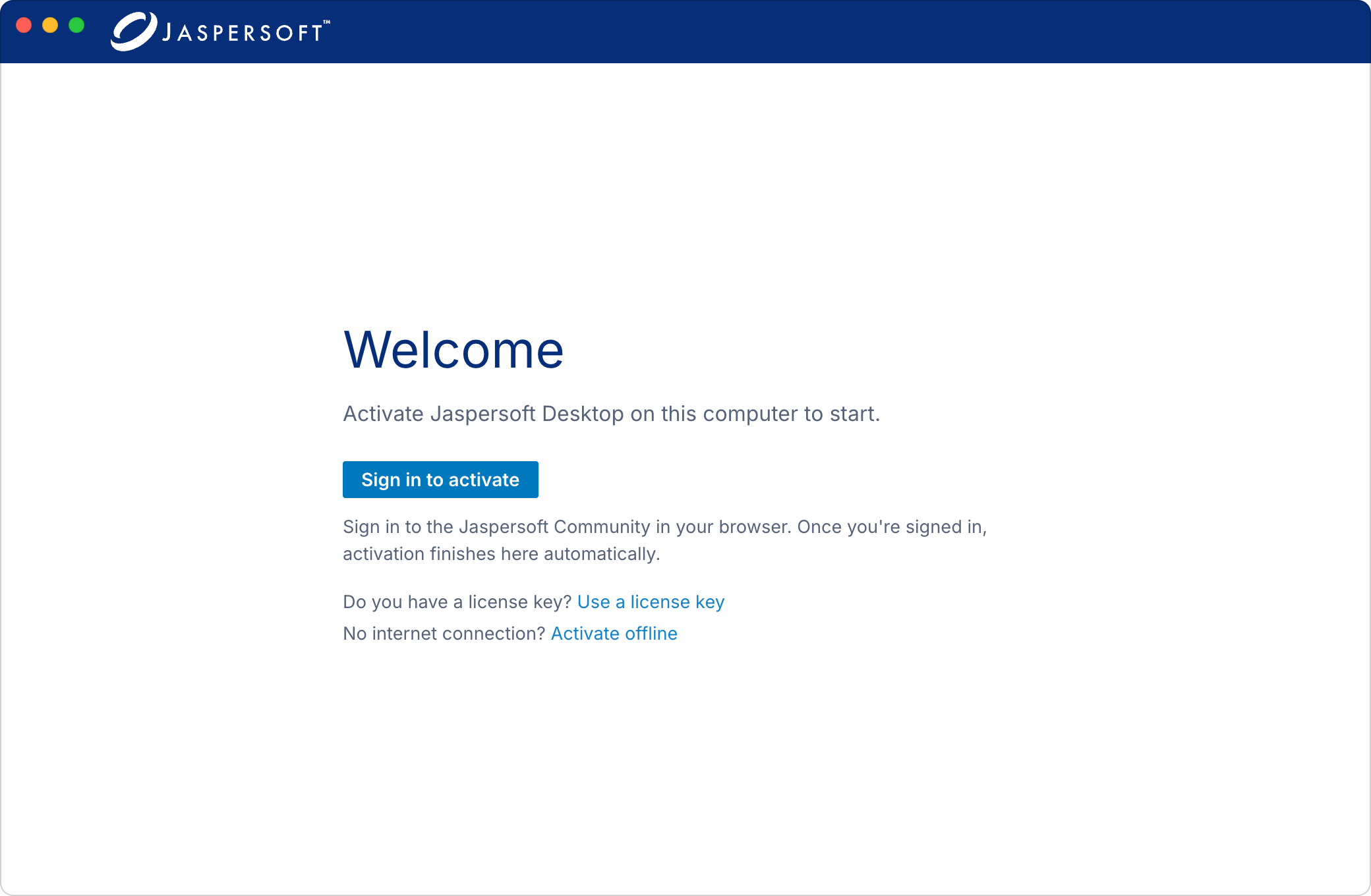
- Start Jaspersoft Desktop. The first time, it asks you to activate it.
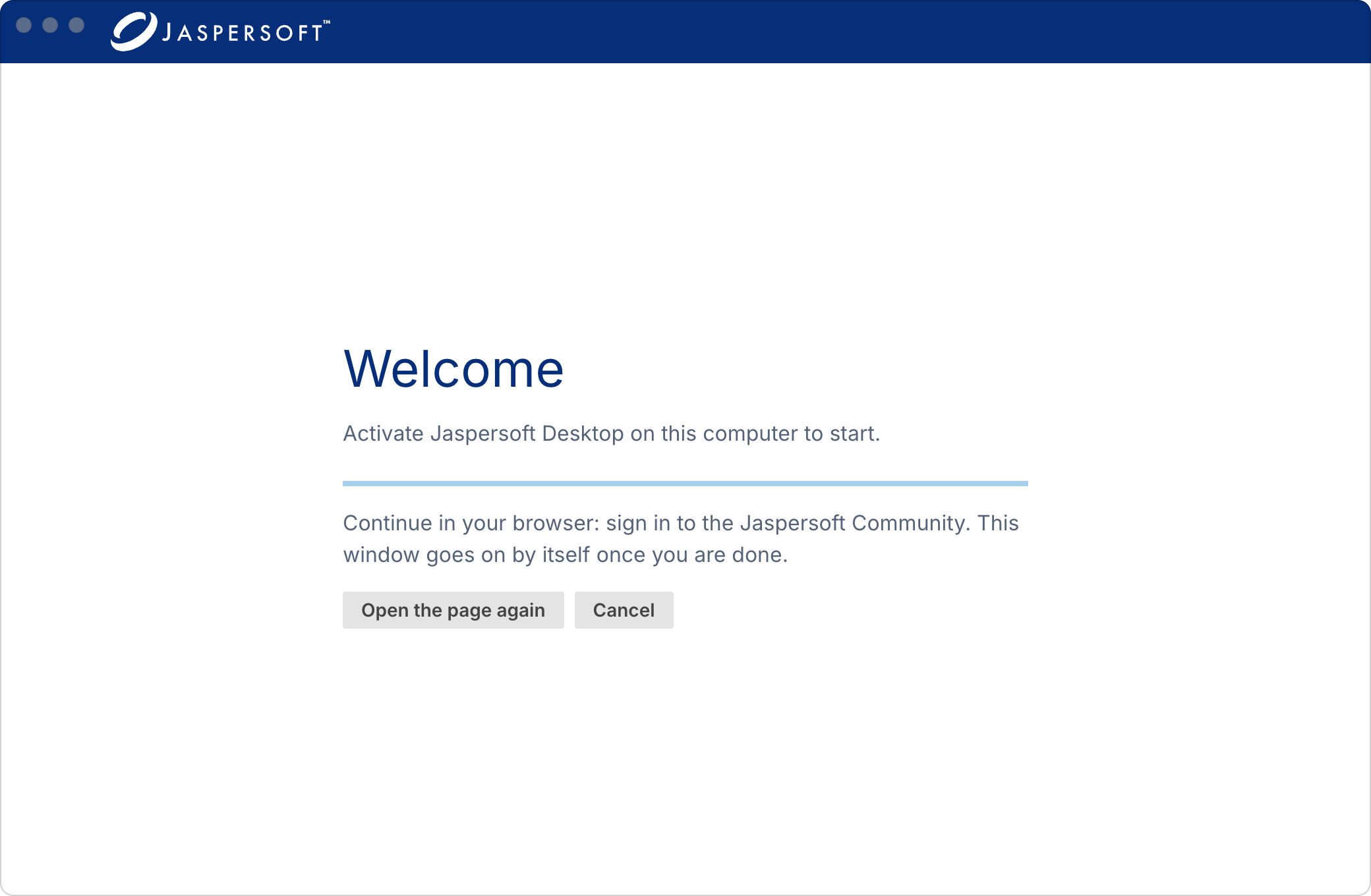
- Click Sign in to activate. Your web browser opens.
- Sign in with your community account. If you are already signed in, you will not see the sign-in page.
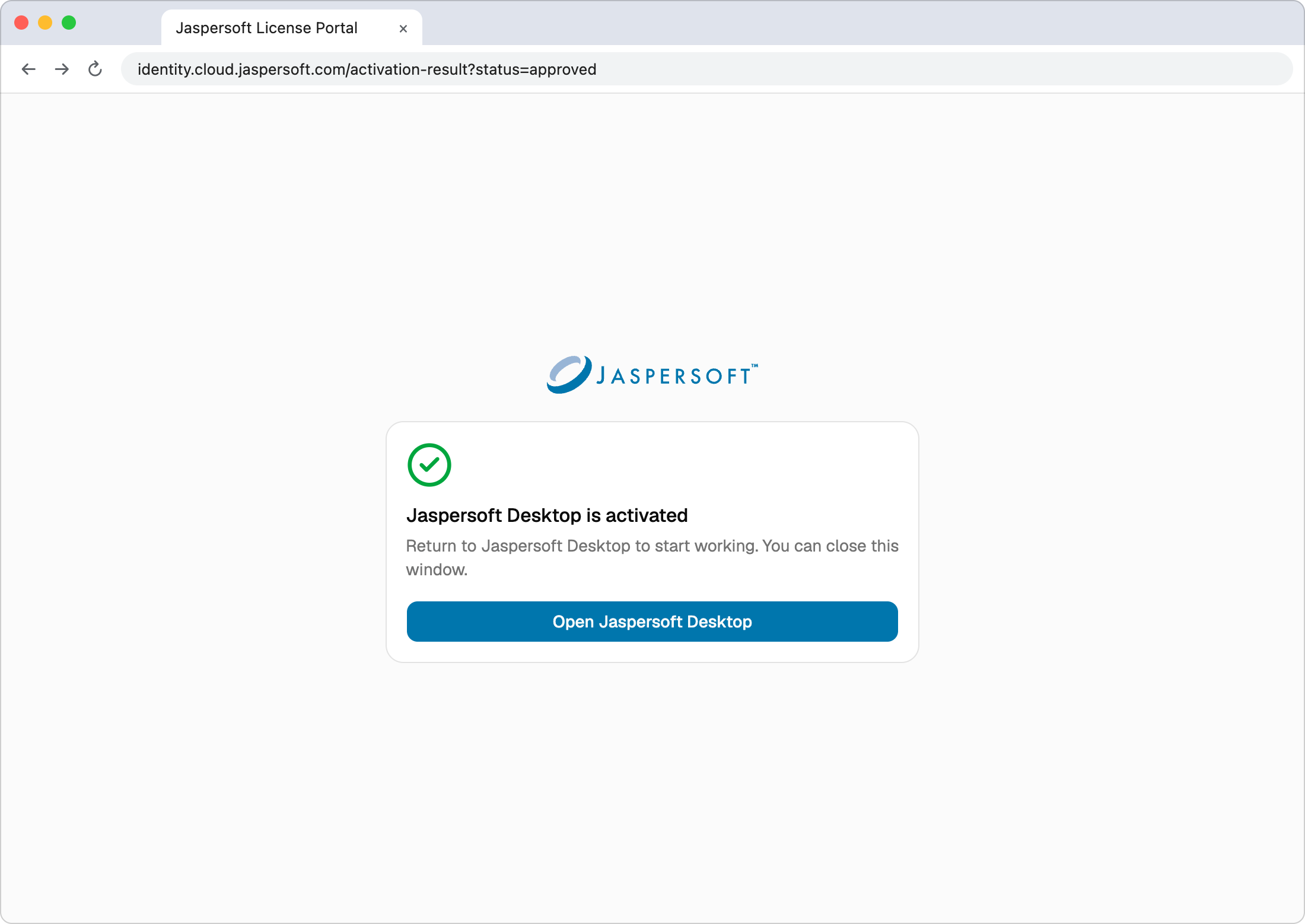
- The browser shows Jaspersoft Desktop is activated. Jaspersoft Desktop goes on by itself; you can close the browser window, or click Open Jaspersoft Desktop to switch back to the app.
While Jaspersoft Desktop waits for the browser, you can click Open the page again (if you closed the browser tab) or Cancel.
That is all. Jaspersoft Desktop picks the right license for you:
- if a trial was issued to your community account (for example an extended trial), it uses that trial;
- otherwise, if this computer is already running your trial, it keeps the trial;
- otherwise it starts a free 60-day trial of Jaspersoft Desktop.
A trial is "issued to you" when it was given to the email address of your community account. Nothing is read from your mailbox: the email address of the account you sign in with is compared with the one the trial was issued to.
Your browser may ask "Open Jaspersoft Desktop?" when you click the button. Allow it (you can choose to always allow it).
If something goes wrong
The browser page and Jaspersoft Desktop show the reason. The most common ones:
| Message | What to do |
|---|---|
| Your free trial has ended. | Contact Jaspersoft to extend your trial. |
| A free trial was already used on this computer. | Each computer gets one free trial, and every account gets one. Sign in with the account you used before. |
| Your license is already active on the maximum number of computers. | Deactivate a computer you no longer use: from that computer (see Moving to a new computer) or in the License portal (see Removing a computer). Then try again. |
| This license has expired / has been revoked / is suspended. | Contact Jaspersoft support. |
| This activation link has expired. | You took more than 20 minutes to sign in. Start again from Jaspersoft Desktop. |
First activation (without internet connection)
Use this when the computer where you run Jaspersoft Desktop has no internet access, or a proxy or firewall blocks it. You exchange two small files with the License portal from any other device with internet access (another computer, a tablet, a phone). Your license is still linked to your community account.
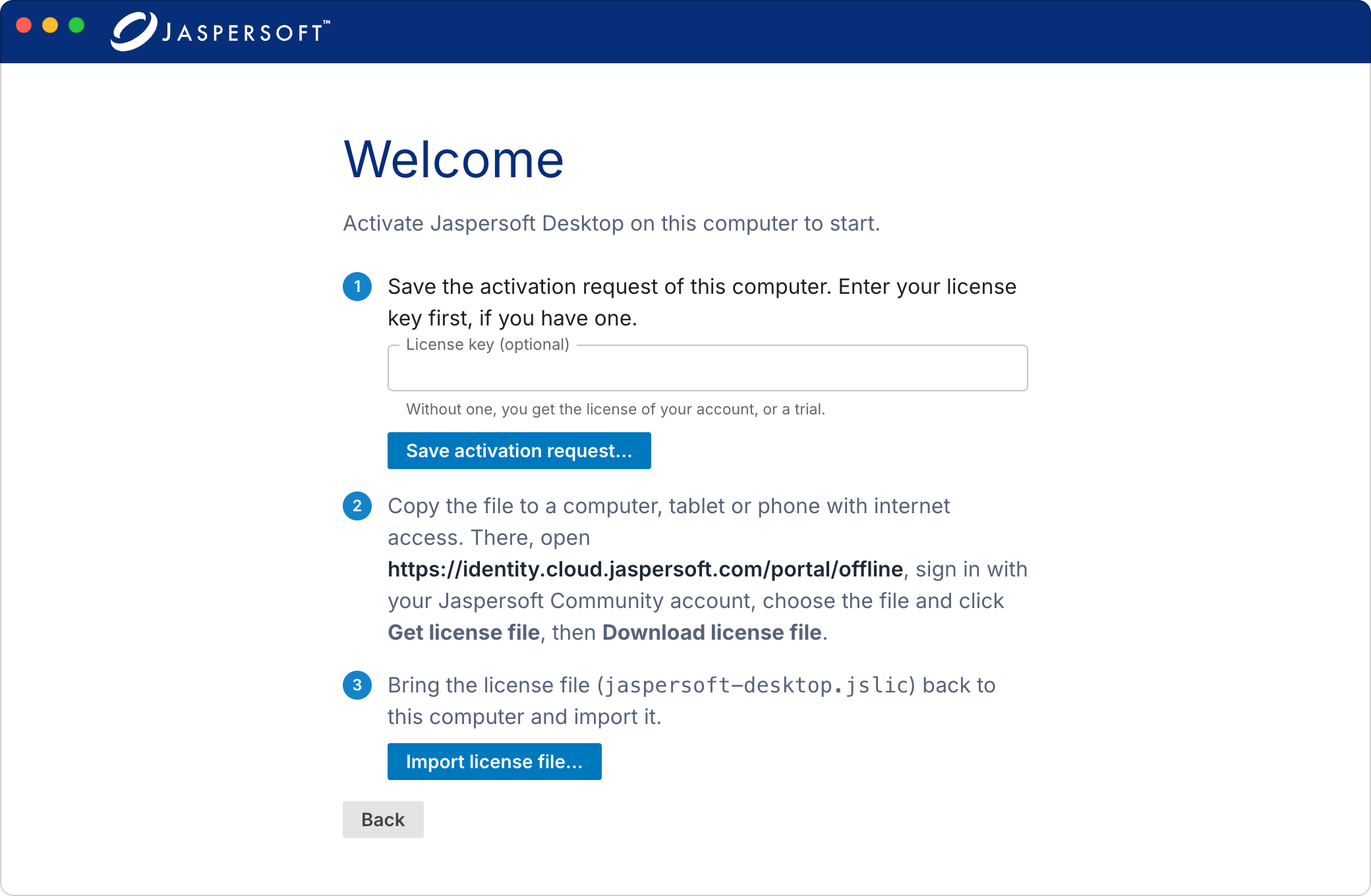
- In Jaspersoft Desktop, below Sign in to activate, next to No internet connection?, click Activate offline. (Jaspersoft Desktop also offers it when it cannot reach the license server.)
- Click Save activation request… and save the request file (
.jslreq). Copy it to a device with internet access, for example with a USB stick or by email. Jaspersoft Desktop shows the address of the License portal's page to open there. - On that device, open the License portal and sign in with your community account.
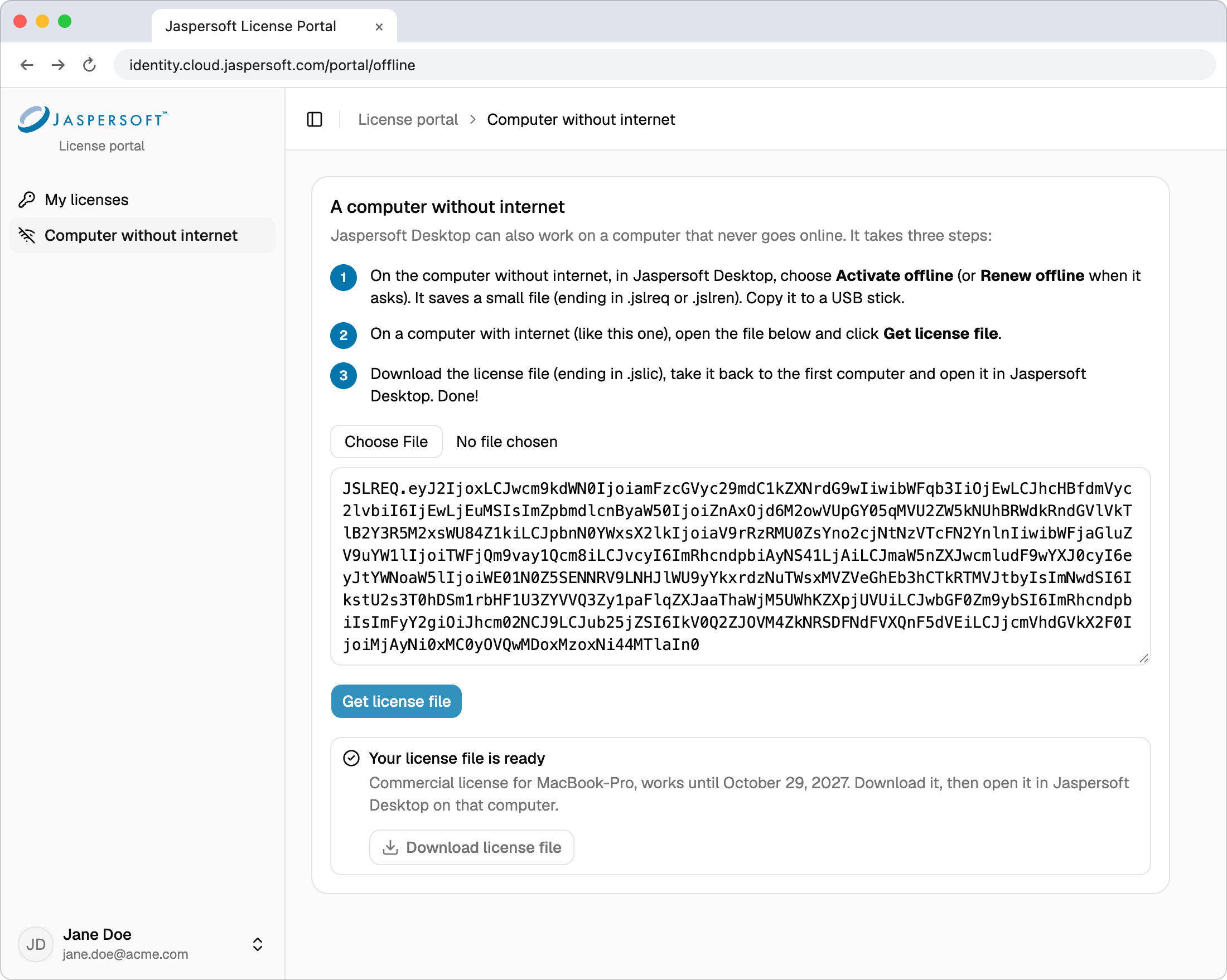
- Go to Computer without internet, open the request file (or paste its content), and click Get license file.
- The portal shows Your license file is ready. Click Download license file. You get
jaspersoft-desktop.jslic. - Copy the license file back to the offline computer. In Jaspersoft Desktop, choose Import license file and select it.
The same rules apply as for online activation. If the request cannot be accepted, the portal shows the reason (see the table above).
If the computer gets internet access later, Jaspersoft Desktop switches to automatic updates by itself. You do not need to activate again.
Updating the license
Automatic updates (computers with internet access)
When it is online, Jaspersoft Desktop checks your license once a day, in the background. This is how it receives, without any action from you:
- renewals and extensions: when your license is renewed or your trial is extended, the new end date reaches Jaspersoft Desktop within a day. This works even after the license has expired: just start Jaspersoft Desktop again.
- removed computers: a computer removed in the License portal stops using the license at its next check.
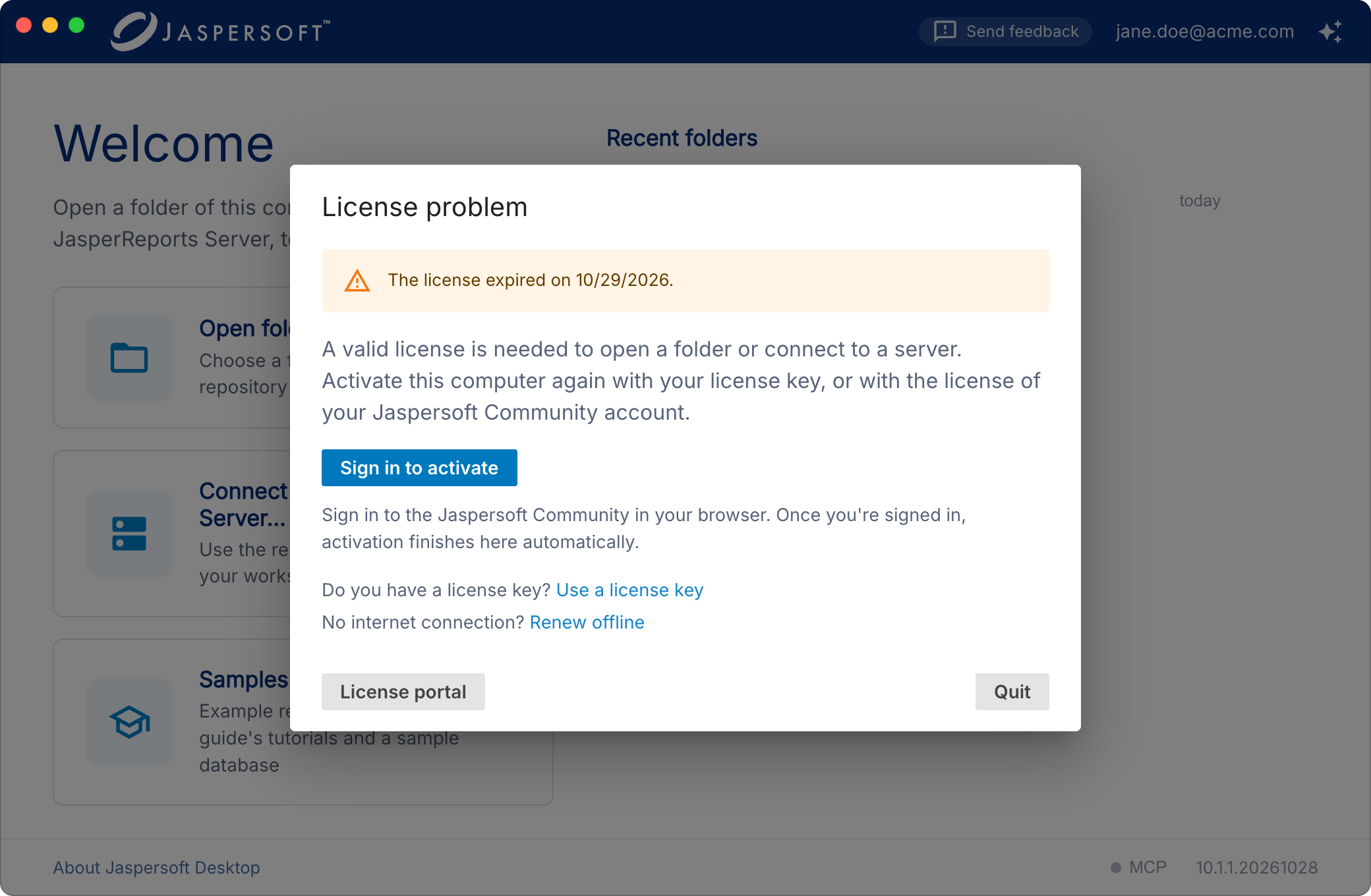
From 30 days before your license ends, the home screen shows how many days are left ("Your trial ends in 12 days"). If the license ends, or can no longer be used on this computer, Jaspersoft Desktop shows the License problem dialog: you can activate again from there (with your account), open the License portal, or quit.
The About dialog
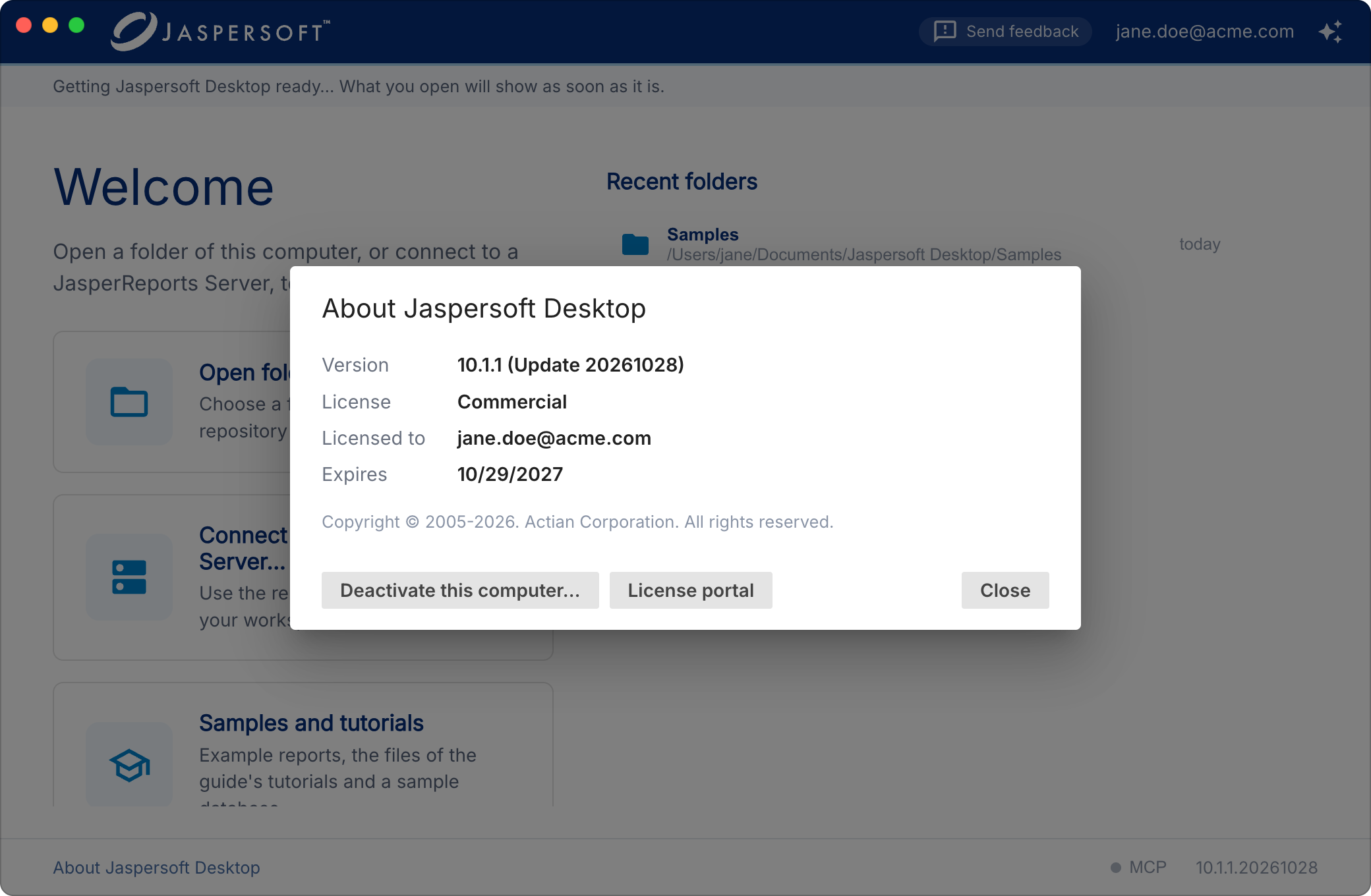
The About dialog shows the license this computer uses: its type (License), the account it is Licensed to, when it Expires, and whether it is Valid. From there you can also open the License portal and Deactivate this computer….
Open it from the bar at the foot of the window — the About Jaspersoft Desktop link, on the home screen and in an open workspace alike — or from the menu: on macOS Jaspersoft Desktop → About Jaspersoft Desktop, on Windows and Linux Help → About Jaspersoft Desktop. Deactivating from a workspace brings you back to the home screen, which asks for an activation.
Renewing offline
A computer without internet access cannot receive renewals by itself. From 30 days before the end date (and after it), Jaspersoft Desktop offers Renew offline: in the About dialog, and in the License problem dialog once the license has ended.
- Choose Renew offline, click Save renewal request… and save the renewal request file
(
.jslren). - On a device with internet access, open it in the License portal under Computer without internet and click Get license file.
- Download the new
jaspersoft-desktop.jslicand import it in Jaspersoft Desktop with Import license file.
Only the person who activated the computer can renew it.
A new version of Jaspersoft Desktop
Your license does not depend on the version of Jaspersoft Desktop you run. Updating the app, to a new major version included, asks nothing of you: your license goes on working, and a trial you are in runs until its end date. You are not asked to activate again.
Moving to a new computer
On the old computer, open the About dialog, click Deactivate this computer…, then Deactivate. Then activate Jaspersoft Desktop on the new one. Your license stays the same; only the computer changes.
If you no longer have the old computer (replaced, broken, lost), remove it in the License portal instead: see Removing a computer.
The License portal
Open the License portal at https://identity.cloud.jaspersoft.com/portal
and sign in with your community account, or click License portal in Jaspersoft Desktop's
About dialog.
The portal has two pages, in the menu on the left: My licenses and Computer without internet.
My licenses
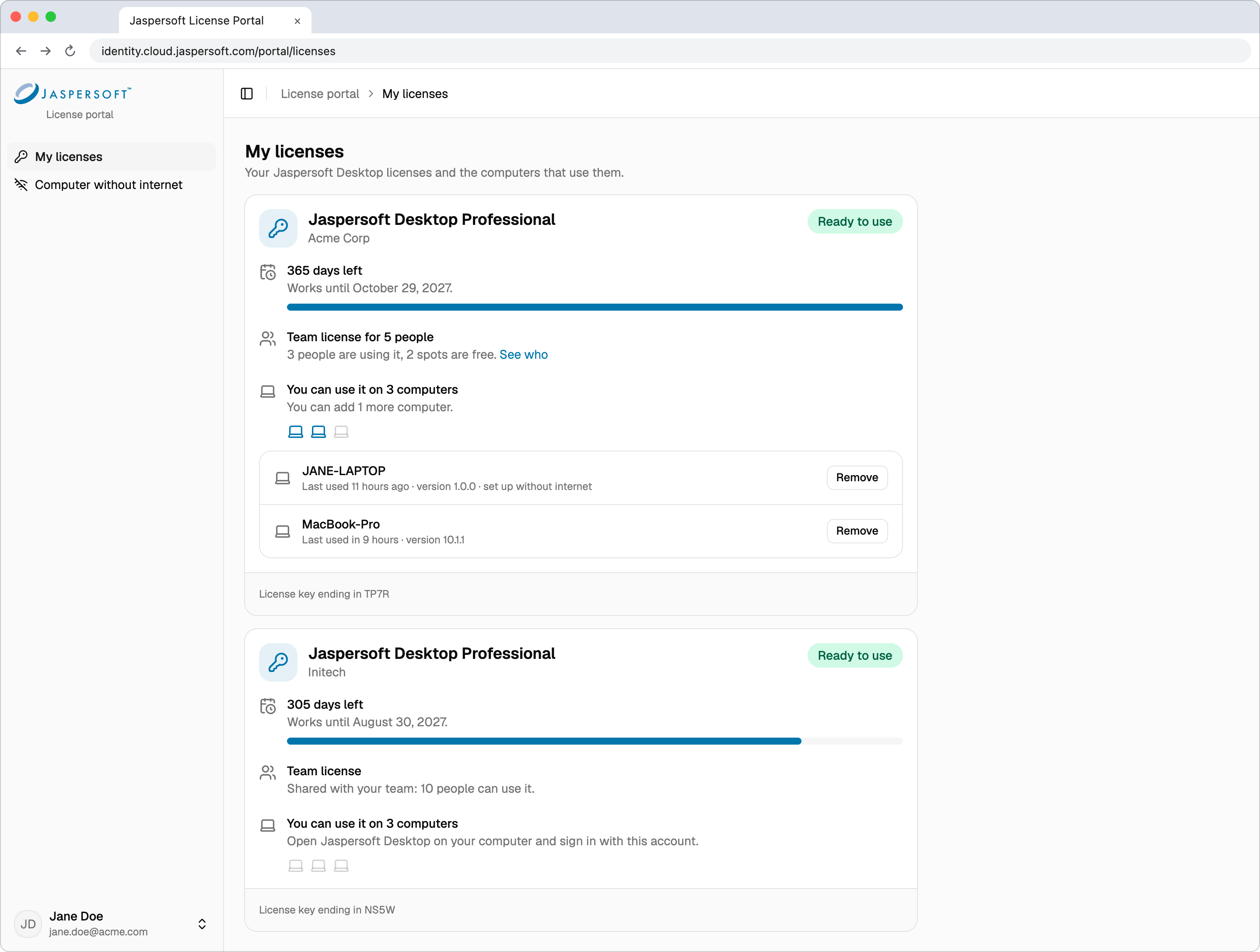
Each of your licenses is shown as a card. Licenses you can use come first; licenses that have ended are listed at the bottom, under Licenses that have ended.
A card tells you, from top to bottom:
- What it is: Free trial or Extended trial.
-
Whether it works, in the colored label at the top right:
Label What it means Ready to use The license works. Not started yet The license starts on a later date, shown on the card. Paused The license is suspended. Contact Jaspersoft support. Ended The end date has passed. Cancelled The license was revoked. -
How long it lasts: how many days are left (for example 23 days left) and the date it works until. The bar below empties as time goes by, and turns amber in the last 7 days.
- Who can use it: Single user license (only you).
- Your computers: on how many computers you can use it, how many more you can add, and the list of computers that use it (see below).
If you have no license yet, the page explains how to start your free trial: open Jaspersoft Desktop and sign in with the same account.
Your computers
Each card shows You can use it on 3 computers (the number depends on the license), with one laptop icon per computer: the colored ones are in use. Below it, the card tells you how many more computers you can add. When all of them are in use, remove one you no longer need before adding a new one.
For each computer you see its name, when it was last used, its Jaspersoft Desktop version, and set up without internet if it was activated offline. If two computers have the same name, the date each one was added tells them apart.
A computer marked On hold: we saw this license on two computers at once used a copy of the same activation, for example after cloning a disk or a virtual machine. It does not count toward your computers. Remove it, then activate Jaspersoft Desktop again on the computer that needs it.
Removing a computer
Click Remove next to a computer you no longer use, have replaced or have lost, then confirm. Jaspersoft Desktop on that computer stops using the license at its next daily check (a computer that stays offline keeps working until its license file expires), and you can use the license on another computer. You can add the removed computer back later by activating Jaspersoft Desktop on it again.
Computer without internet
Where you open the request files of computers without internet access and download their license files, in three steps shown on the page. See First activation (without internet connection) and Renewing offline.
Frequently asked questions
Do I need internet access to use Jaspersoft Desktop? Only to activate it (or use offline activation). Afterwards it works offline; it checks the license online once a day when it can.
I reinstalled my computer. Do I lose my activation? Activate again. If Jaspersoft Desktop counts it as a new computer and you reach the computer limit, remove the old entry in the License portal (see Removing a computer).
Can I use my license at home and at work? Yes, on as many computers as the License portal shows on your license card (You can use it on 3 computers, for example).