Working with data adapters
A data adapter tells a report where its data comes from and how to read it: a CSV or Excel
file, a JSON or XML document, a database, a JasperReports Server. It is a small file of the
workspace, ending in .jrdax, that any number of reports can use.
Creating a data adapter
Click New Data Adapter on the empty page of the workspace, or choose Data Adapter in the
explorer's + menu or in the New menu of a folder (right-click it). A new data adapter opens in a tab, named
My Data Adapter.jrdax until you save it.
Choose the kind of data in the list on the left, and fill in the form on the right.
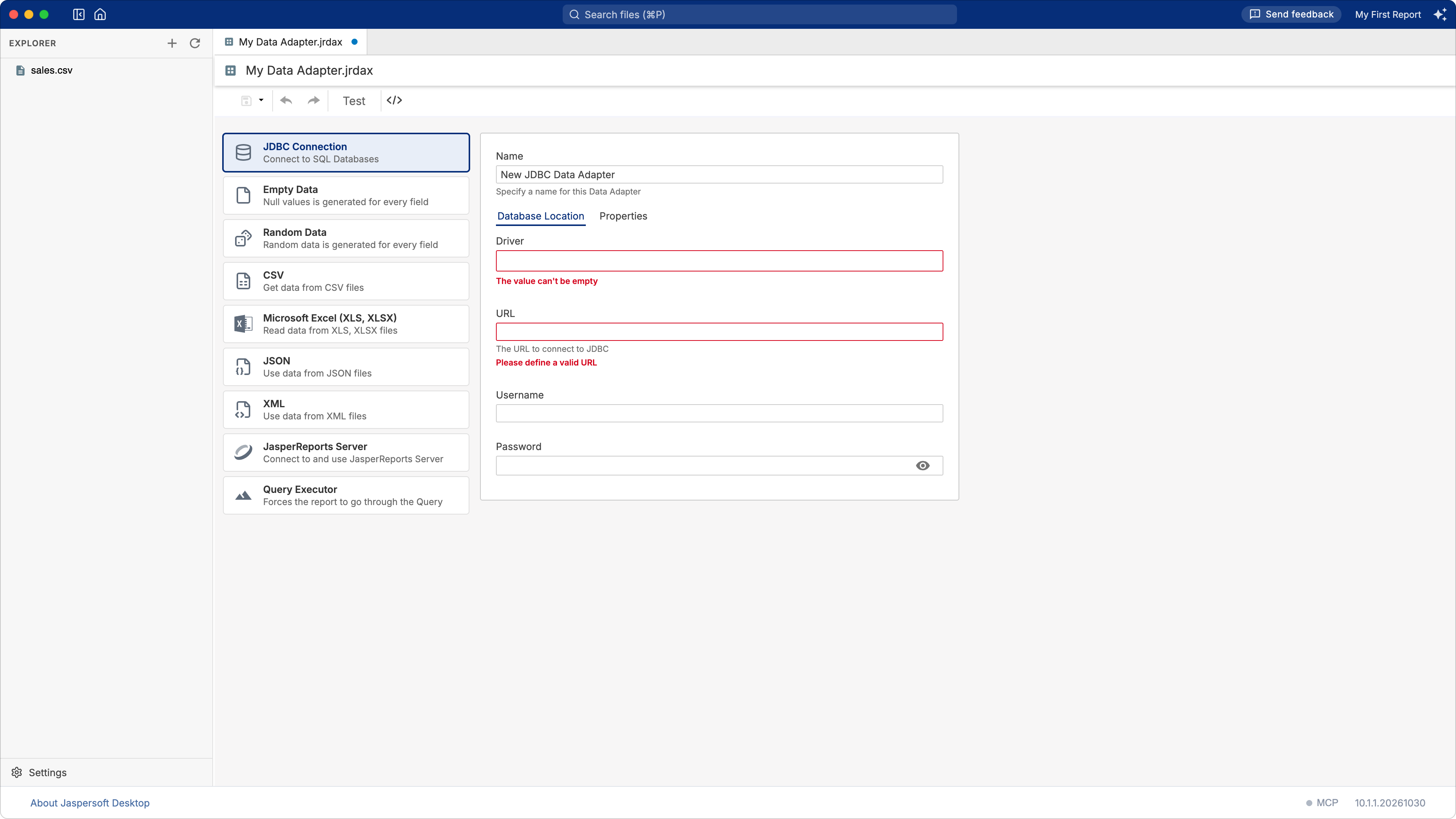
| Kind | For |
|---|---|
| JDBC Connection | A database: PostgreSQL, MySQL, MariaDB, Oracle, SQL Server and any other with a JDBC driver |
| Empty Data | A number of empty records, for a report that needs no data, or to try a layout |
| Random Data | A number of records with random values, to try a layout |
| CSV | A CSV file |
| Microsoft Excel (XLS, XLSX) | A sheet of an Excel workbook |
| JSON | A JSON document |
| XML | An XML document |
| JasperReports Server | A data source of a JasperReports Server |
| Query Executor | Data read by the query of the report itself |
Give the data adapter a Name, the name shown to you.
Click Test in the toolbar to check that the data can be read: you do not need to save first. "Data Source successfully validated" means it can; otherwise the message says why.
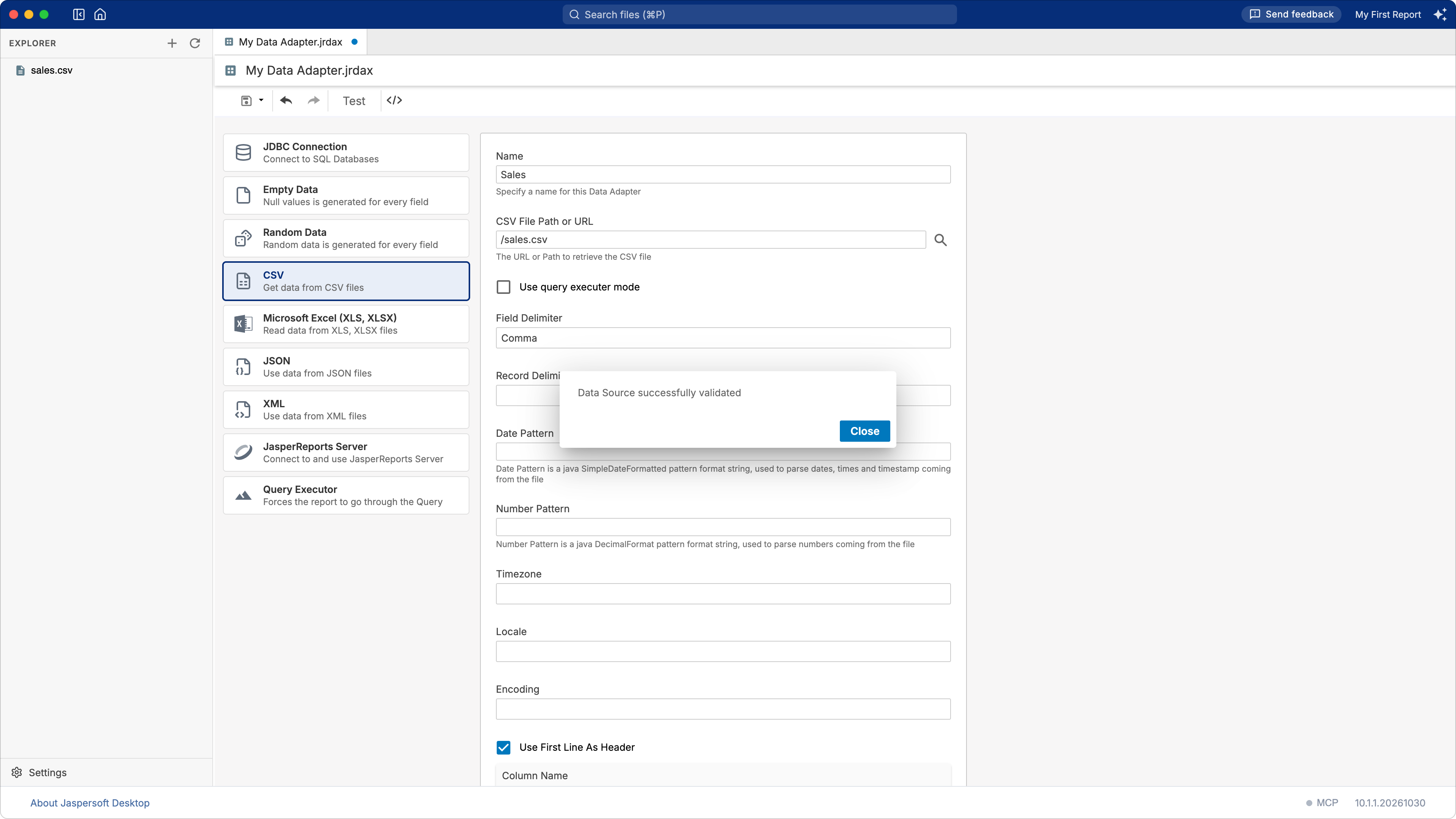
Save the data adapter with the save button of the toolbar. The first time you choose its file name,
which must end in .jrdax. To keep the workspace tidy, you can save data adapters next to their
data, or in a folder of their own.
Files: CSV, Excel, JSON, XML
These data adapters read a file. Give its path in the workspace, starting with /, for example
/data/sales.csv, or pick it with the search button next to the field. An address starting with
http:// or https:// reads the file from a web server instead; the form then shows the HTTP
OPTIONS: user name and password, the method, parameters and headers of the request.
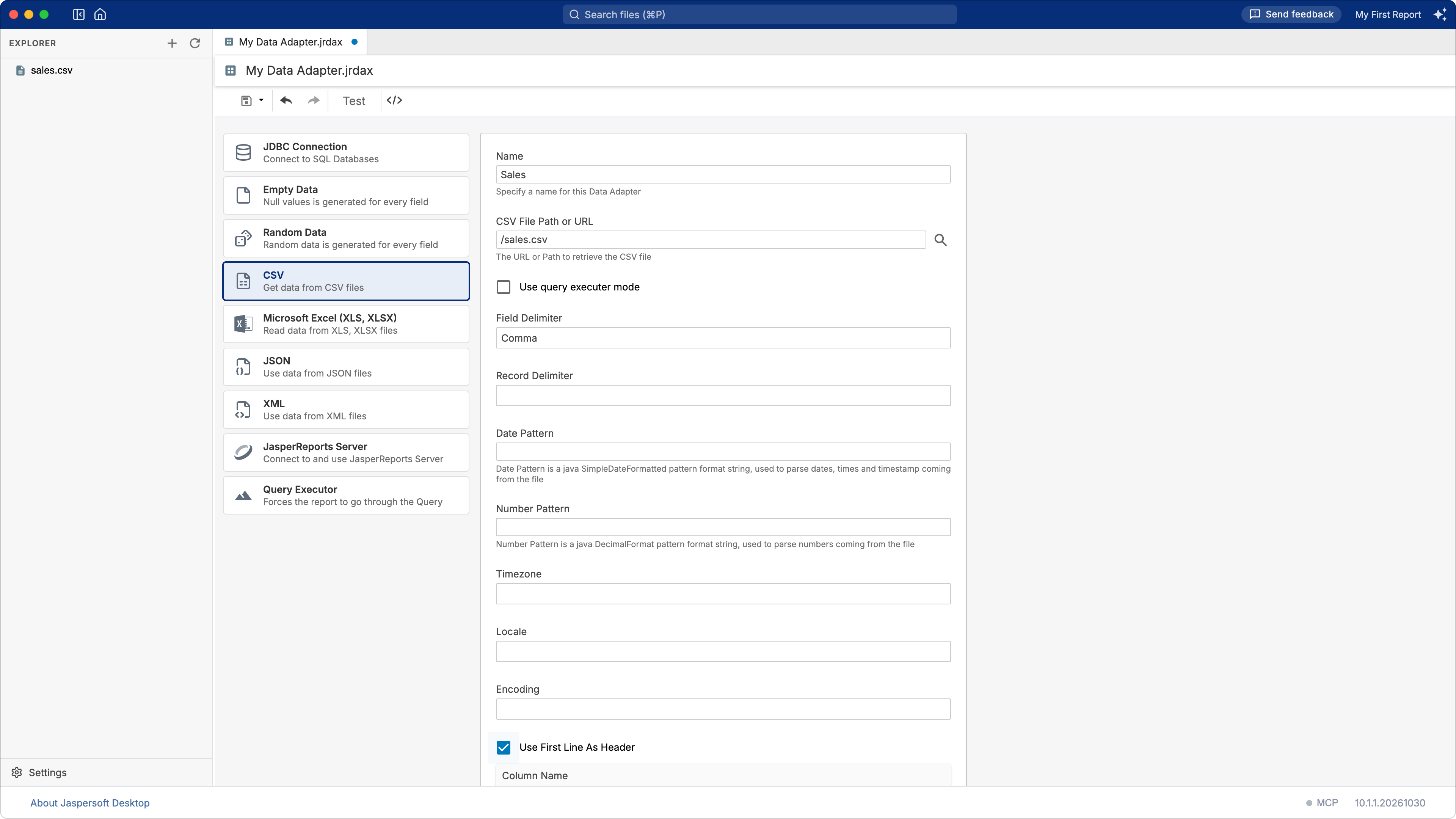
CSV
| Option | What it does |
|---|---|
| Use First Line As Header | The first line holds the names of the columns, which become the fields. Otherwise, name the columns in the Column Name table, in their order. |
| Field Delimiter | What separates the values of a line: a comma unless you choose otherwise. |
| Record Delimiter | What separates the lines. |
| Date Pattern, Number Pattern | How dates and numbers are written in the file, for example dd/MM/yyyy and #,##0.00. |
| Encoding | The character set of the file, for example UTF-8 or windows-1252. |
| Locale, Timezone | The language and the time zone the values are read in. |
| Use query executer mode | Lets the report's query (language csv) choose the columns. Leave it off unless you need it. |
Microsoft Excel: the file, the format (detected by default), Use First Line As Header and the columns by name and index, Sheet Selection for a workbook with several sheets.
JSON: the file and a Select Expression that picks the records, for example sales.items.
Language chooses how the expression is written: json (JasperReports' own) or jsonql.
XML: the file and the Select Expression, an XPath expression that picks the records, for
example /sales/item. Choose Use report XPath when filling the report to let the report's own
query do it instead.
Databases: JDBC
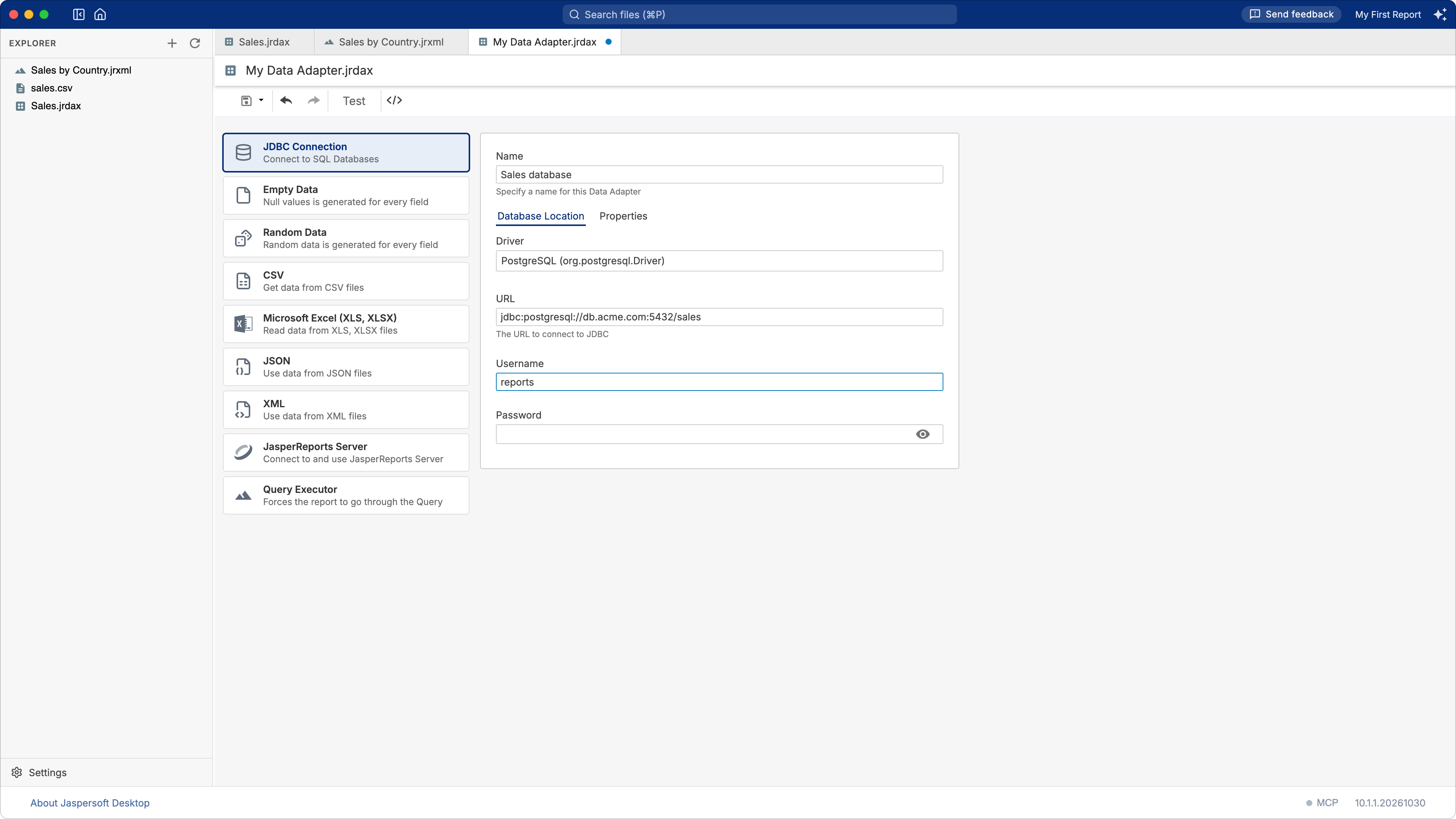
On the Database Location tab:
| Field | What to enter |
|---|---|
| Driver | The JDBC driver of your database. The list has the usual ones; another can be typed in, by its class name. |
| URL | Where the database is, in the driver's syntax, for example jdbc:postgresql://db.acme.com:5432/sales. It must start with jdbc:. |
| Username, Password | The account to connect with. |
The Properties tab sets Auto Commit, Read Only, Transaction Isolation and any other property of the driver.
The JDBC driver. Jaspersoft Desktop includes the drivers of PostgreSQL and MariaDB (which also
connects to MySQL); the Samples workspace has the one of HSQLDB, for the sample database. For
another database, download its JDBC driver (a .jar file) from its vendor and add it to the
workspace in Settings › Libraries (see Workspace settings); the reports
of the workspace then find it.
No database at hand? Jaspersoft Desktop includes one to try SQL on, with a data adapter ready in the Samples workspace: see The sample database.
About the password. The password is written in the data adapter's file, as it is, not
encrypted. Anyone who can read the .jrdax file can read the password: use an account that can only
read the data the reports need, and do not commit the file to a shared repository with a password
in it.
Other kinds of data
- Empty Data and Random Data: only the Number Of Records (10 unless you change it).
- JasperReports Server: the Server address, Organization, Username, Password, and the Datasource Path of a data source in the server's repository.
Using a data adapter in a report
The Report Wizard asks for the data adapter of a new report (see Creating your first report). To choose it for an existing report, or change it:
- Click an empty area of the report, so that nothing is selected.
- Open the Dataset tab, at the right of Properties.
- In Data Adapter, click the search button and choose the
.jrdaxfile.
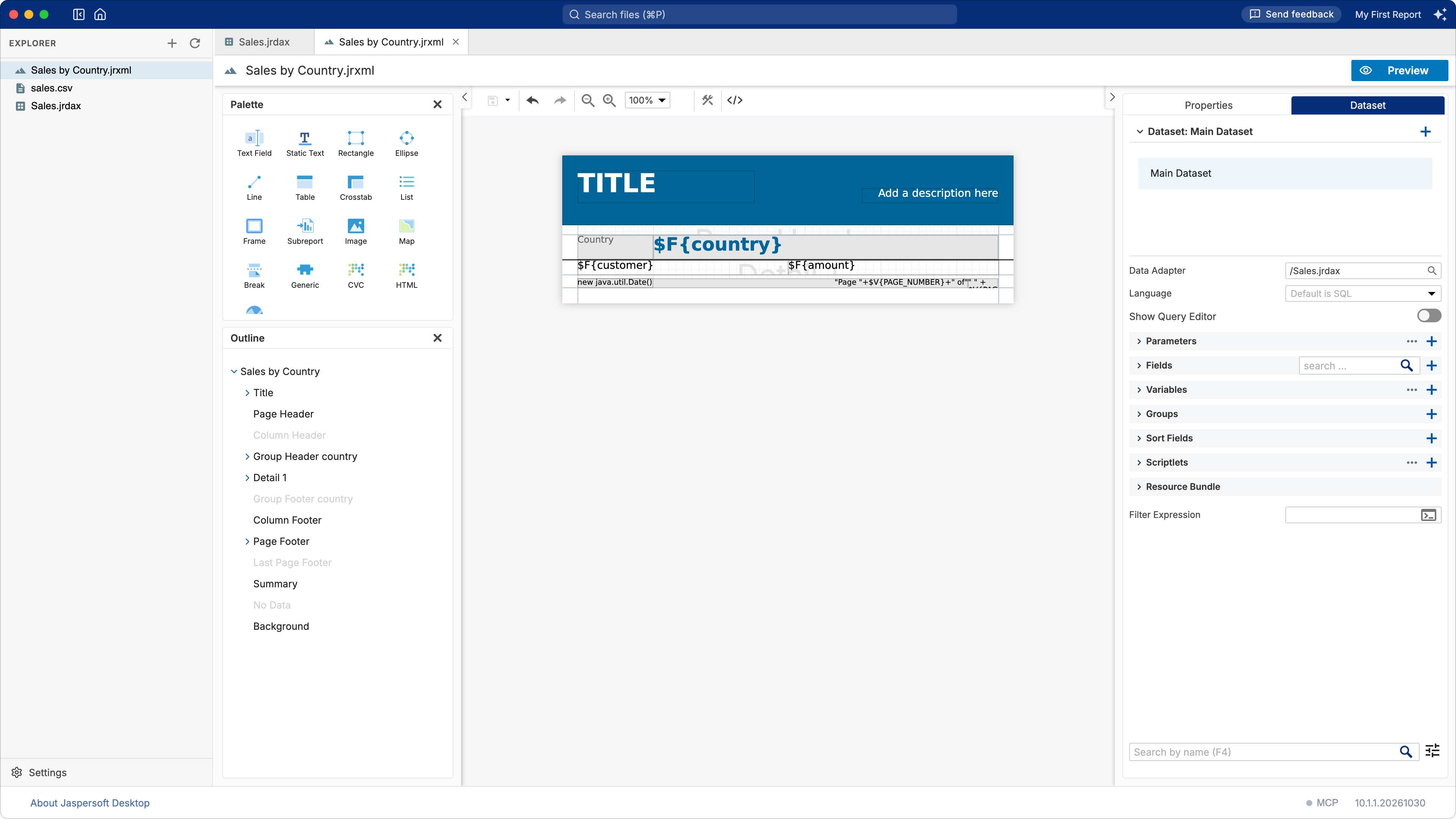
The preview of the report uses this data adapter. A report with subdatasets (for tables, charts, lists) has a Data Adapter for each of them as well.
Reading the fields. A report needs fields matching the data. Turn on Show Query Editor in the Dataset tab: write the query when the data needs one (SQL for a database), then click Read Fields to add the fields the data provides. Preview Data shows the first records, to check the query.
The AI assistant
The AI assistant can create CSV, JSON and Excel data adapters for you: attach the file to your question, for example "make a data adapter for this file", and approve what it proposes. See Designing reports with AI.