Selecting a Data Source for Running the Complex Report
You need to select a data source to retrieve data for the report and the query input control, otherwise the report, and the list of users in the query input control remain blank.
To select a data source and run the complex report
-
On the Controls & Resources page of the JasperReport wizard, select Data Source.
-
On the Locate Data Source page, choose Select data source from repository.
-
Click Browse, choose Organization > Data Sources > JServerJNDI Data Source, and lick Select.
-
On Link a Data Source to the Report, click Submit.
-
On the Locate Query Page, click Submit again to save the complex report.
Skip the Query and Customization pages of the JasperReport wizard to use the default settings on those pages.
The server validates the report and a message appears indicating that the report was added to the repository. -
In the Repository, click the name New Complex Report to run and view the report.
Input controls appear. -
Enter these input values, as shown in Figure 5‑22:
-
Text Input Control:
myText -
Checkbox Input Control: Check the checkbox.
-
List Input Control: Select the Third Item.
-
Date Input Control: Click
 and select December 31, 2010.
 -
Query Input Control: Select Sarah Smith from the dropdown.
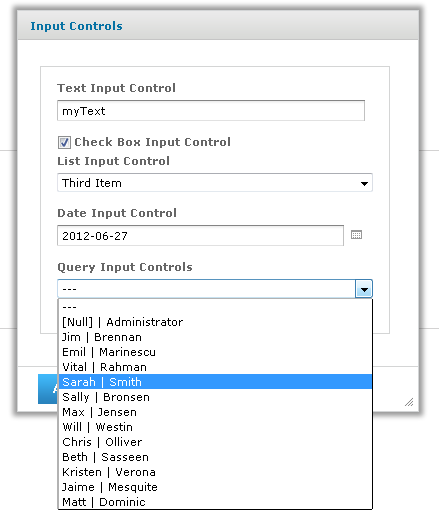
Figure 1 Input Controls Dialog for the New Complex Report
-
-
Click OK or Apply to run the report with the selected input, including the incorrect non-numerical input for the Text Input Control.
The server enforces the proper format defined for each input control. You defined the Text Input Control as a numeric type, so it accepts only valid numbers, as indicated by the message to specify a valid float number, as shown in Figure 5‑23.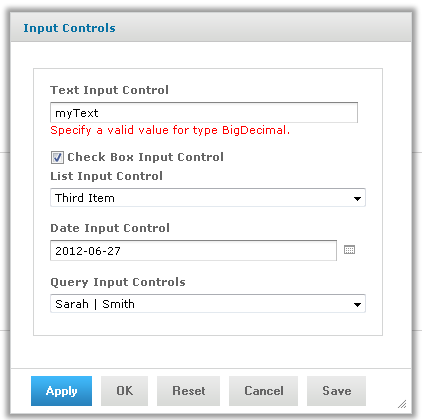
Figure 2 Invalid Input Message
-
In Text Input Control, enter
3and click OK or Apply.
The sample report includes a header that displays the value of each parameter received from the input controls. Values and labels appear in the language specified by the active resource bundle, in this case English.
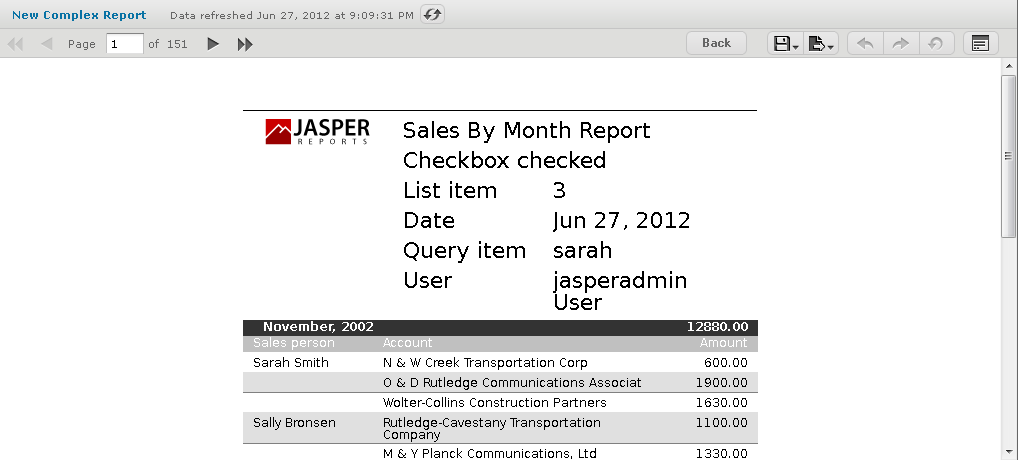
Figure 3 Output Controlled by Input
In the Report Viewer, you can open the Input Controls dialog at any time by clicking the Options button. Click OK to run the report using the chosen values and close the Input Controls dialog. Click Apply to run the report using the chosen values, but keep the Input Controls open for choosing other values and rerunning the report.
Note
If you get an error when you run the report, open it for editing as described in Editing JRXML Report Units. Review your settings. If you cannot find the problem, edit the SalesByMonth sample report (in the repository at /reports/samples) and compare its settings to your report.
To see the message written by the scriptlet JAR on the last page of the report, click  in the Report Viewer.