Creating a Calculated Field
To create a calculated field
-
First, create the Ad Hoc view to use. To do this, select Create > Ad Hoc View from the menu. The Select Data wizard appears.
-
Click
 and navigate to Domains.
 -
Select Supermart Domain. Click Choose Data. The Data Chooser window appears.
-
In the Data Chooser window, double-click Sales to select it and click OK. A new Ad Hoc view opens.
-
In the Ad Hoc view, click
 at the top right of the Fields section and select Create Calculated Field... from the context menu. The New Calculated Field dialog box appears, displaying the Formula Builder.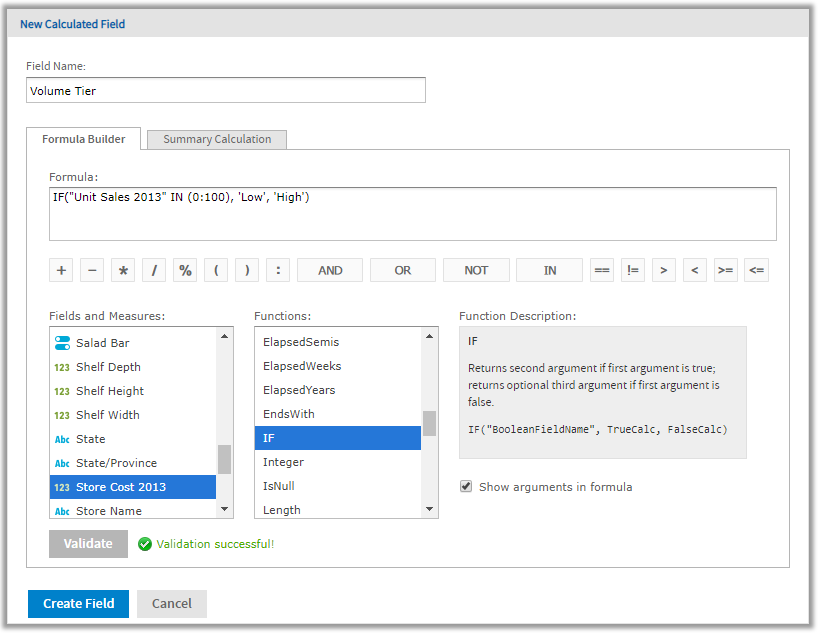
Figure 1 Formula Builder Tab in New Calculated Measure Dialog Box
-
Enter Volume Tier for the Field Name.
Creating the formula
This section shows how to create a simple text formula that says Low when the Unit Sales amount is under 100 and High otherwise.
Formulas must use the following syntax:
- Labels for fields and measures must be in double quotes ("): "Customer ID", "Date ordered".
- Text must be in single quotes ('): '--'.
- Levels must be in single quotes ('): 'ColumnGroup', 'Total'.
-
Make sure Show arguments in formula is selected.
-
Now create the formula. Double-click IF() in the Functions list.
Because Show arguments in formula is selected,IF("BooleanFieldName", TrueCalc, FalseCalc)is entered in the Formula Builder. -
Double-click
BooleanFieldNameto select it, then double-click Unit Sales 2013 in the Fields and Measures list.
The Formula Builder displaysIF("Unit Sales 2013", TrueCalc, FalseCalc). -
Edit the expression in the Formula Builder to read as follows:
IF("Unit Sales 2013" IN (0:100), 'Low', 'High'). -
Click Validate to verify that the formula does not have any syntax errors.
Creating a summary calculation
The Ad Hoc Editor creates a default summary calculation based on the type of formula you have entered. This section shows how to select a different summary function.
-
Click the Summary Calculation tab.
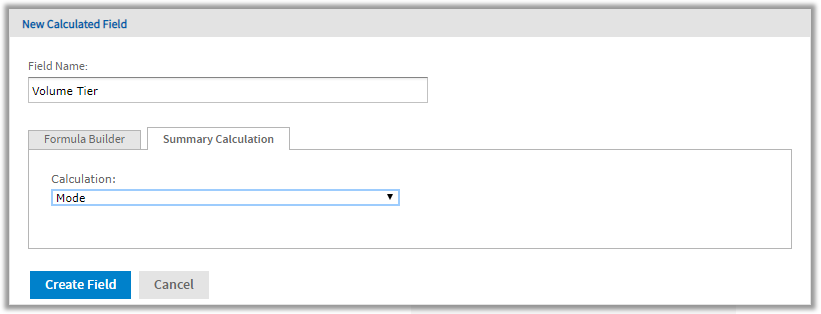
Figure 2 Summary Tab in New Calculated Measure Dialog Box
-
Select Mode from the Calculation menu.
-
Click Create Field.
The calculated field appears in bold text at the bottom of the list of available fields. A special icon indicates it is a calculated field .
.
If you have installed the samples, the Ad Hoc view 10. Calculated Fields and Measures includes examples of calculated fields and measures (indicated by  ). You can explore their formulas by right-clicking the field or measure name and selecting Edit. You can also create tables, charts, or crosstabs to see how these calculations work in views.