Uploading an OLAP Schema
Upload an OLAP schema to the repository so that it can be accessed by more than one Mondrian connection. Doing this before creating a view simplifies the procedure for defining Mondrian connections and OLAP views.
As of JasperReports Server version 8.2, Javascript in OLAP schemas is disabled by default. You can upload a schema with Javascript, but it generates an exception when opening the OLAP view. For more information, see “Enabling Javascript in OLAP Schemas” on page 1.
To upload a schema
-
Click View > Repository.
The repository appears.
-
In the Folder panel, navigate to Analysis Components > Analysis Schemas.
-
Right-click the folder and navigate to Add Resource > File > OLAP Schema.
The Upload a File From Your Local Computer page appears and prompts you to select a file and set its properties.
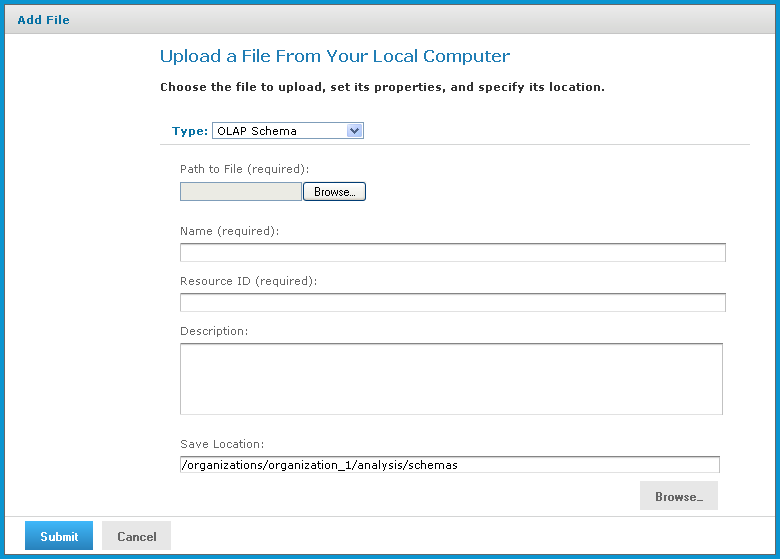
Figure 1 Upload a File From Your Local Computer - OLAP Schema
-
Under Path to File, click Choose File and locate the OLAP schema you want to add.
-
Enter a name and description for the schema.
The Resource ID is auto-generated as you type in the Name field. You can change the ID if necessary.
-
Next to the Save Location field, click Browse, and navigate to the location in the repository where you want the file to reside.
-
Click Submit.
The new file appears in the repository.