Creating an OLAP View with an XML/A Connection
An OLAP view can retrieve data from an XML/A connection. An XML/A connection is a connection to a remote Mondrian client connection. For more information on XML/A connections, refer to Working with XML/A Connections and Working with XML/A Sources.
To create an OLAP view with an XML/A connection:
-
Click View > Repository.
The repository appears.
-
In the Folder panel, navigate to Organization > Organization > Analysis Components > Analysis Views.
-
Right-click the Analysis Views folder and select Add Resource > OLAP View from the context menu.
The Name the View page appears and prompts you to enter the basic details about the new view.
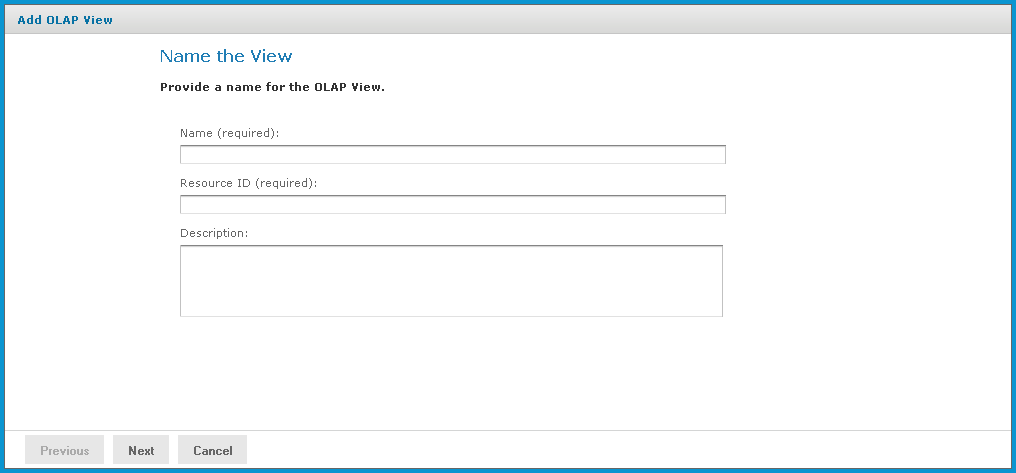
Figure 1 Name the View Page
-
Enter a name and a description of the view and click Next.
The Locate Mondrian Connection page appears.
-
In the Connection Type dropdown, select XML/A Connection.
-
Click either:
-
Define a XML/A Client Connection in the next step to add a new connection.
- Select a XML/A Client Connection from the Repository to select a data source from the repository.
Click Browse, navigate to the location where you want to add the file, and click Select. Click Next and skip to step 9.
-
If you chose to create a client connection, the Set Connection Type and Properties page appears and prompts you to define the connection, Enter the requested information. For details, refer to Working with XML/A Connections.
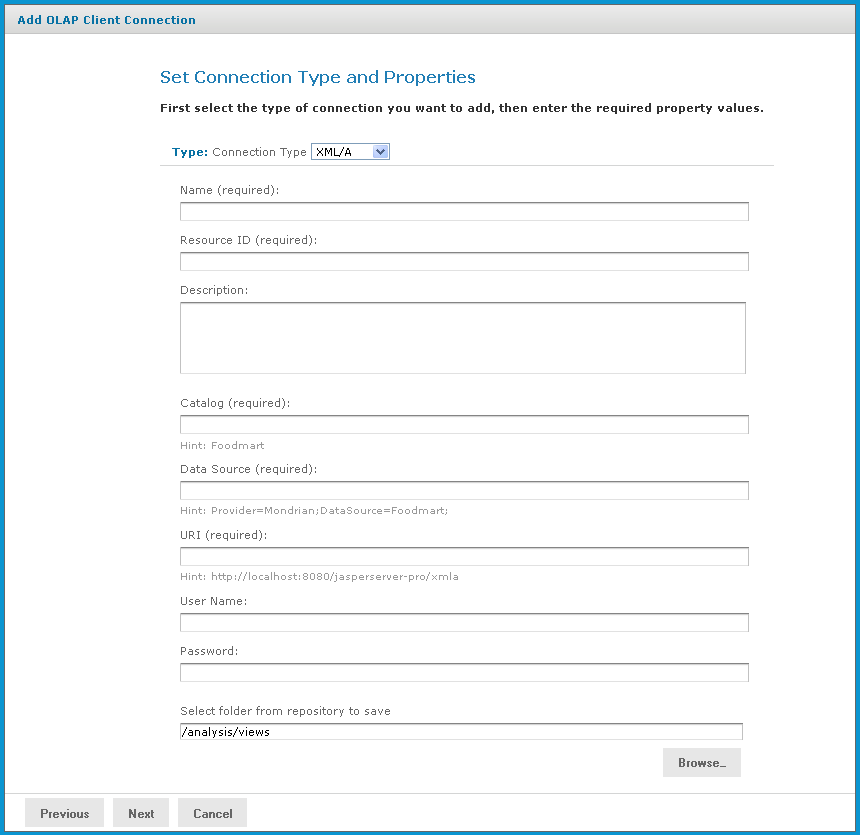
Figure 2 Set Connection Type and Properties - XML/A Page
Note
Your XML/A provider may be another JasperReports Server instance hosting Mondrian connections. For more information, refer to sections Working with XML/A Connections and Working with XML/A Sources.
-
Click Next.
The Define the Query page appears and prompts you for a query string.
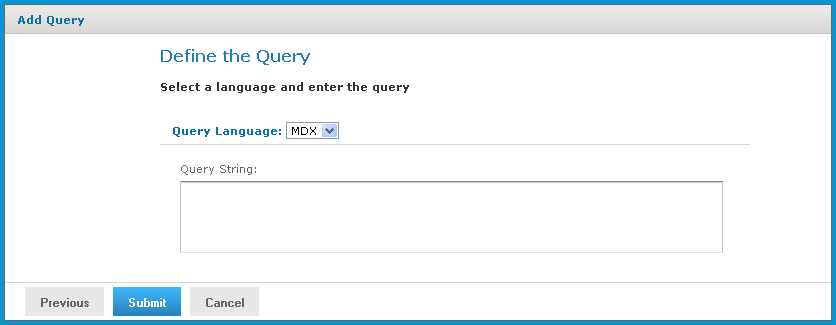
Figure 3 Define the Query Page
-
In the Query String field, enter the MDX query. For example, type:
select {[Measures].[Unit Sales], [Measures].[Store Cost], [Measures].[Store Sales]} on columns, {([Promotion Media].[All Media], [Product].[All Products])} ON rows from Sales where ([Time].[2012].[Q4].[12])To learn more about writing MDX queries, refer to the reference material listed in External Information Resources.
-
Click Submit.
If the view passes validation, it is added to the repository. If you receive an error, it is likely that the problem is a typo in your query. Carefully review the query to ensure that it is valid.
-
When you have ca valid OLAP view, clicking Submit adds it to the repository.
If the view passes validation, it is added to the repository.