XLS and XLSX Data Sources
XLS and XLSX data sources read a file in the Microsoft Excel XLS or XLSX format and allow you to query its contents as a relational table. These data sources support Domain-related features like:
- Returning JDBC metadata
- Creating derived tables
- Supporting calculated fields
- Domain pre-filtering
- Joining other data sources in a virtual data source
- Full support in the Domain Designer
To create an XLS or XLSX data source
-
Log in as an administrator.
-
Click View > Repository, expand the folder tree, and right-click a folder to select Add Resource > Data Source from the context menu. Alternatively, you can select Create > Data Source from the main menu on any page and specify a folder location later. If you installed the sample data, the suggested folder is Data Sources. The New Data Source page appears.
-
From the Type dropdown, select either the XLS or XLSX Data Source. In this example, we create an XLSX data source.
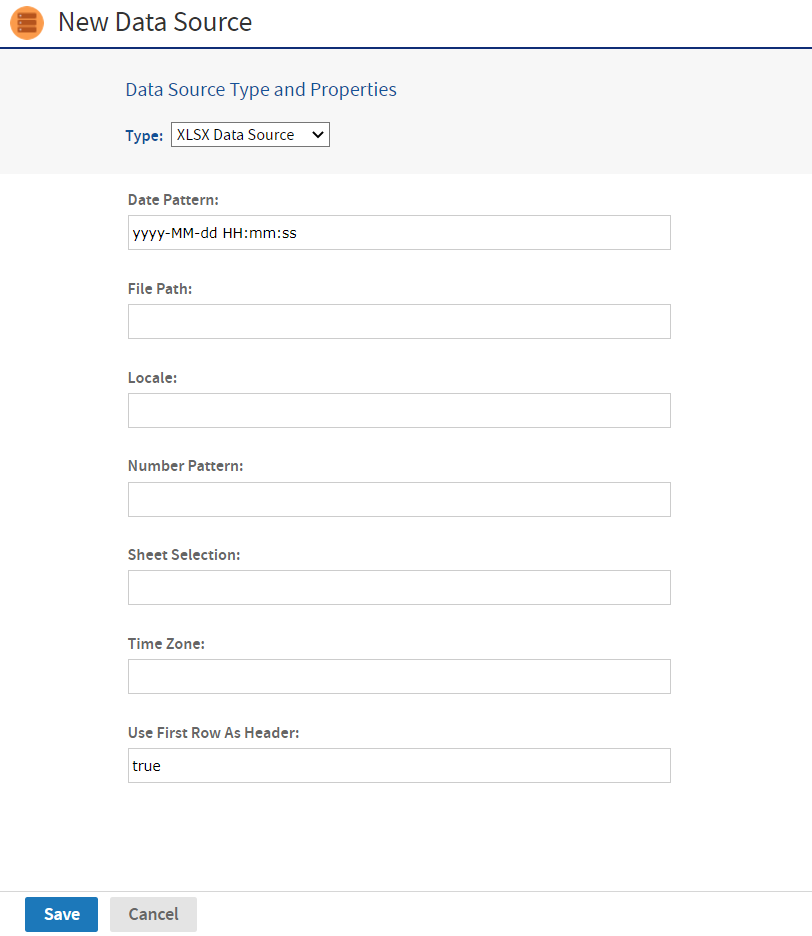
Figure 1 File Data Source Page for an XLS/XLXS Data Source
-
Enter the date and time format patterns used for the data source.
-
Enter the file path for the XLSX file. You can specify a file in the repository with the
repo:syntax, followed by the repository path of the file. Specifyftp:,http:orhttps:to use those Internet protocols. To specify a file on your server's file system, specify its path directly, starting from the root, for example/tmp/MyDataFile.xlsx. The user running the server process must have permission to access the file.Note
Only the File Path field is required, and the remaining fields are optional.
-
Enter the regional locale for the file. The locale property displays the data in a specific format based on the region. (optional)
-
Enter the number pattern for the file. (optional)
-
Enter the name of the Excel file sheet to use for the data source. (optional)
-
Enter the local time zone for the file. (optional)
-
Specify whether the first row in the XLSX file is a header as true or false. (optional)
-
Click Save. The Save dialog appears.
-
Enter the Data source name for and an optional description. The Resource ID is generated from the name that you enter. If you have not already specified a location, expand the folder tree and select the location for your data source.
-
Click Save in the dialog. The data source appears in the repository.