Parameters Prompt
If you set a parameter to be used as a prompt, when running the report, Jaspersoft Studio asks for the value of the parameter.
To create a parameter prompt
Create a simple report with the template Blank A4, name ParameterExample and data adapter One Empty Record - Empty Rows.
- In this report, create a parameter and rename it (from its Properties view) to
MESSAGE, with typejava.lang.String, and select the Is For Prompting) checkbox. - Drag the parameter from the outline view into the Title band. Jaspersoft Studio creates a text field to display the parameter value. You should have something like the following image.
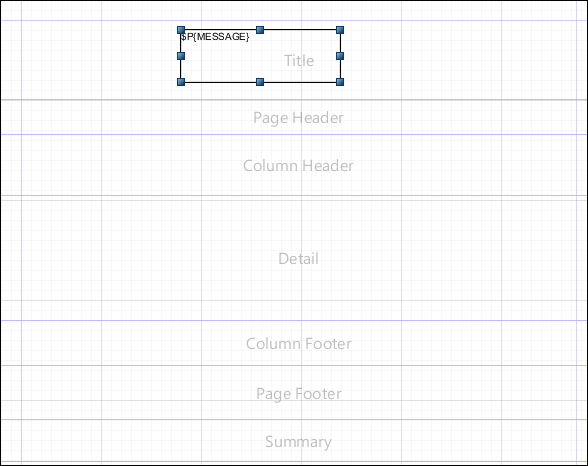 |
| Figure 1 Parameter in Title Band |
To compile and preview the report
-
Click the Preview tab.
Be sure that the Input Parameter window is open. If not, click the gray right-arrow to the left of the Preview screen.
-
Add a value for the MESSAGE parameter. For this example, type Parameter Example.
-
Press the Play button. The message is printed in the title band.
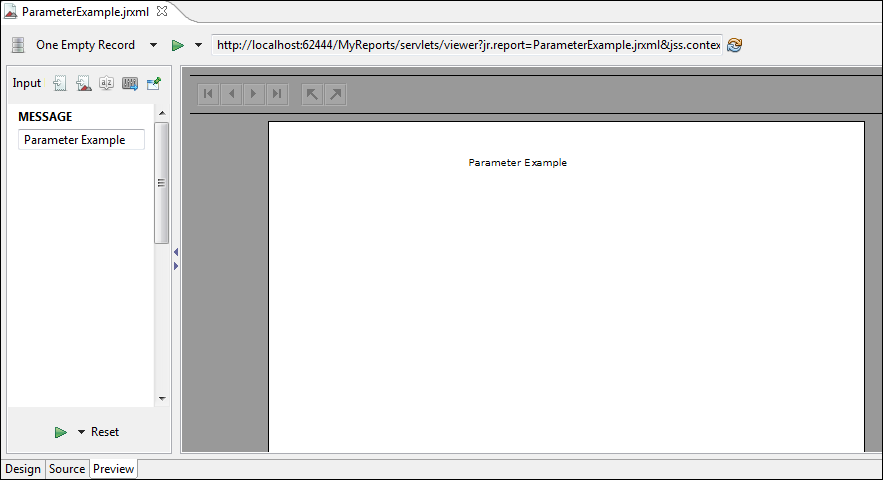 |
| Figure 2 Preview Tab with Parameter Value |
Jaspersoft Studio provides input dialogs for parameters of type String, Date, Time, Number, and Collection.