Report Bursting and Report Splitting
You can burst and split a report in Jaspersoft Studio. Report bursting is done by a report that creates scheduled jobs in a JasperReports Server instance for other reports. When you run a report, it results in several other report jobs and the generated output is based on the bursting report execution.
Report splitting works with a single report that can be run in the JasperReports Server scheduler and the output is split into several parts and stored in the repository.
This chapter contains the following sections:
Report Bursting
Jaspersoft Studio provides a built-in report bursting feature that allows you to burst a report based on some parameters and generate multiple reports, with each report having specific data. You can send these reports to different recipients with data relevant to them. For example, a single report containing shipping data of countries, such as Mexico, Canada, and the US, can be burst into different reports based on each country.
Report bursting is done by a report that triggers the bursting operation. Because reports have the built-in capability to retrieve records from a database, they can iterate through the records in the database. A bursting report needs a JasperReports Server connection to work with JasperReports Server. This connection is provided by the Jaspersoft Server data adapter and helps to retrieve information from JasperReports Server to trigger the bursting.
Bursting Scriptlet
A bursting report has a special scriptlet that is a bursting component. This scriptlet is attached to the data set of the bursting report. You can define a scriptlet by using scriptlet properties including, Name, Description, and Class. However, for class, there is a default value provided in Jaspersoft Studio itself, for example, Class: com.jaspersoft.jasperreports.jrs.bursting.BurstingScriptlet
A bursting scriptlet ensures it creates a scheduler job for each record in the data source with the required parameters by calling the REST API of the JasperReports Server. The jobs are created automatically during the report execution for each record in the data source.
The scriptlet uses a data adapter to create the connection for rest_V2/jobs when the report itself does not use a JasperReports data adapter.
Bursting a Report
The following example shows how to burst a report and send data of a country related to each recipient.
To burst a report
-
Create a CSV file with two columns Country and Email, and create a data adapter that points to this CSV file.
-
Create a report containing two fields country
$F(Country)and Email address of recipient$F(Email). This report is a bursting report used for bursting operation. -
A bursting scriptlet is required for the bursting report. To create a scriptlet, in the Outline view, right-click the Scriptlets, and select Create Bursting Scriptlet. It creates a bursting scriptlet.
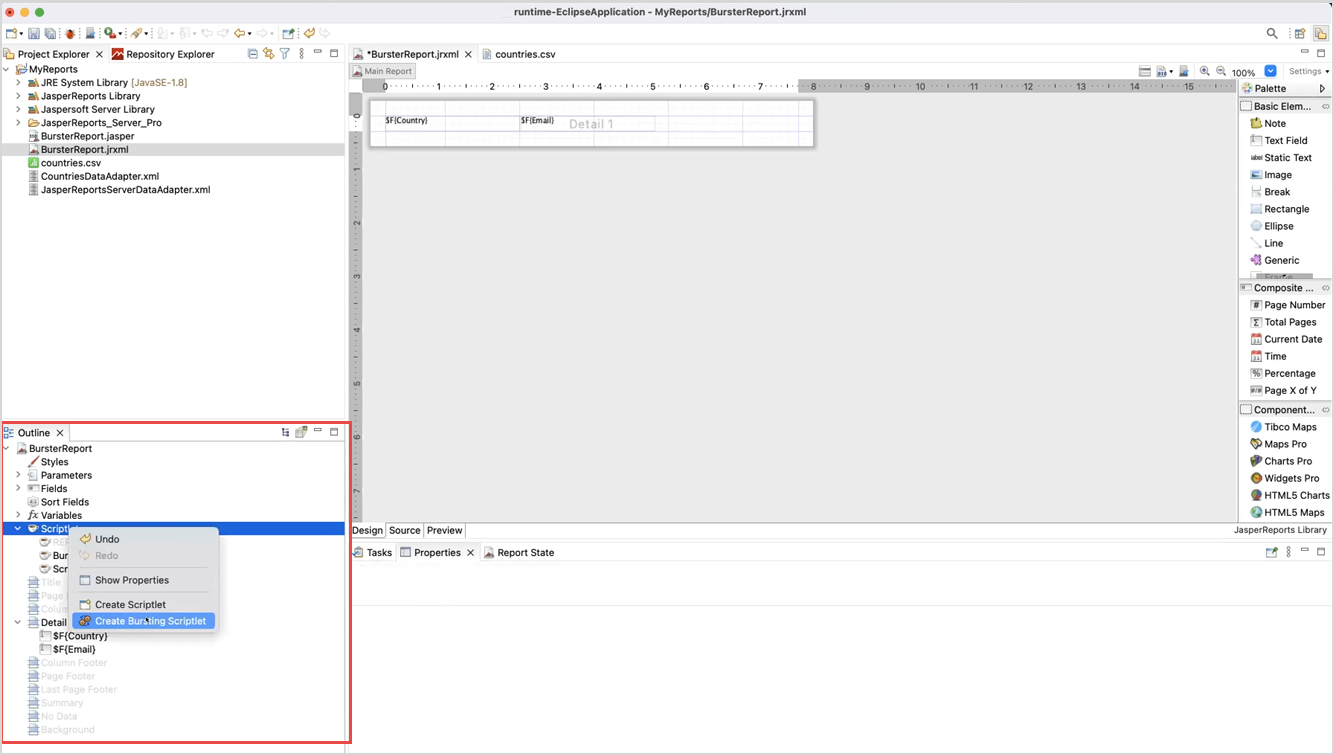
Figure 1 Creating a Scriptlet -
To edit the properties of the bursting scriptlet, right-click the bursting scriptlet and select Edit Bursting Properties. Bursting scriptlet edit dialog appears.
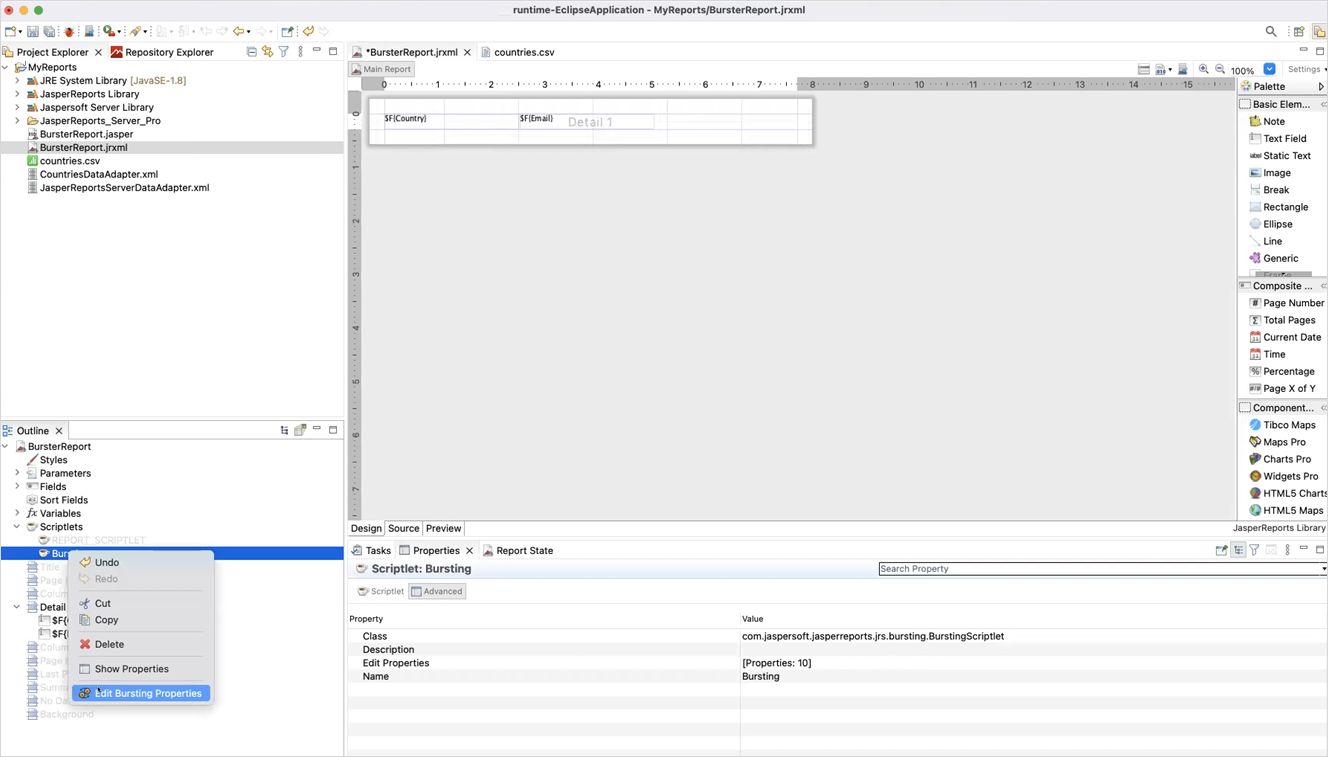
Figure 2 Editing a Scriptlet -
On the Parameters tab, click Add to add the parameter. Report Bursting Parameter dialog appears. Enter the Parameter name and Parameter value that you want to pass to the burst reports. For example:
Parameter name: ShipCountry_1
Parameter value: $F{Country}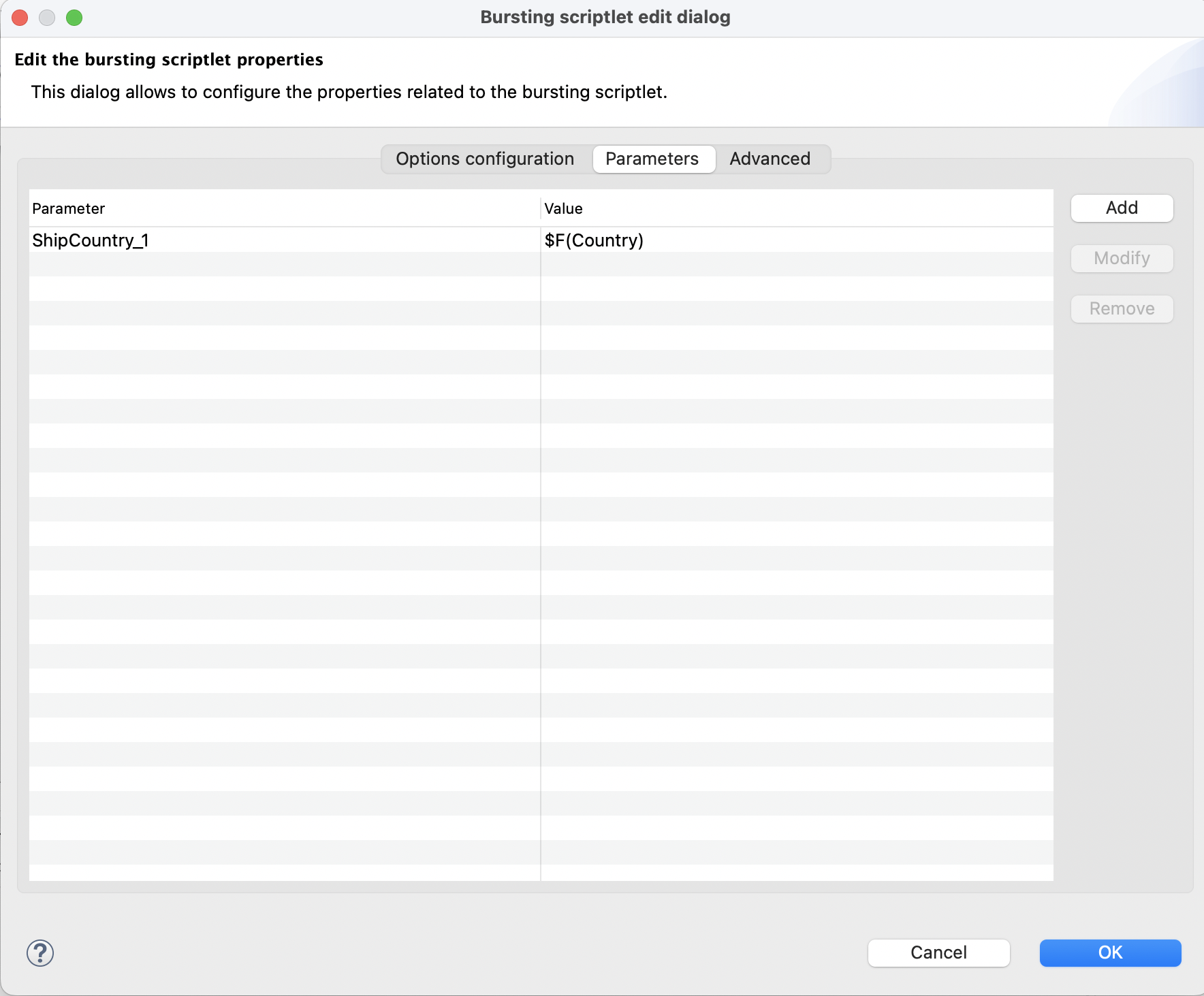
Figure 3 Parameter and its Value -
On the Options Configuration tab, select the Essential Options from the left panel and set the following fields:
Server profile: select the server connection from the dropdown for the bursting report. For example, JasperReports Server Pro.
Enabled: true
Job Label: Sales By Country
Report URI: browse the repository and select the report you want to burst.Note
The path to the burst report in a bursting report is interpreted as relative to the user that runs the report. So if the burst report is part of an organization, you cannot have a bursting report that works for both superuser and users from that organization (jasperadmin and joeuser). superuser needs the absolute path and users from the organization needs a relative path. It is recommended to run bursting reports that belong to the same organization as the user.
Server data adapter:
JasperReportsServerDataAdapater.jrdax. This data adapter makes the connection to the JasperReports Server and lets you publish the reports to the server.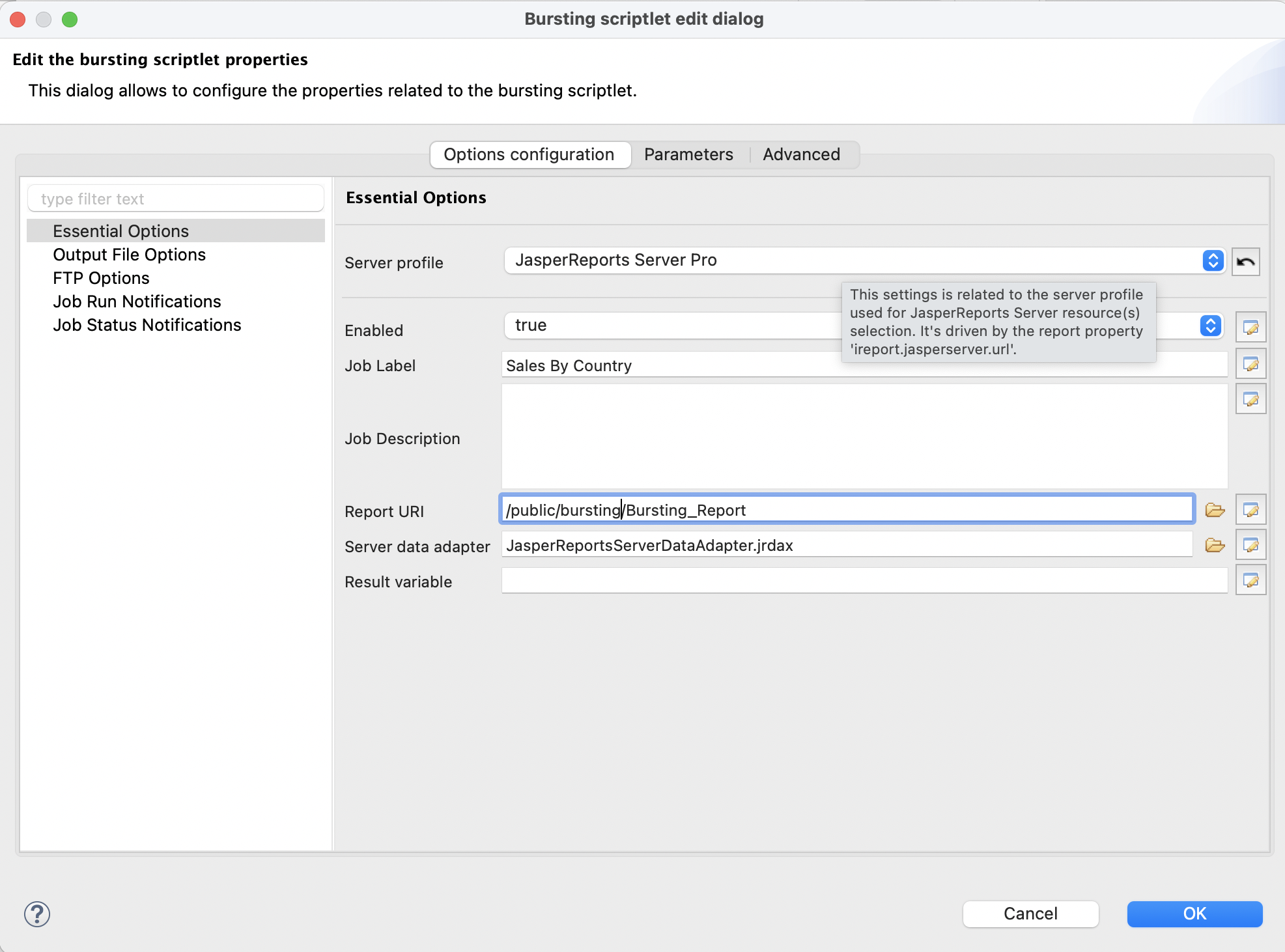
Figure 4 Adding Essential Options -
Select Output File Options and set the following options:
File name: “Sales-” + $F{Country}
Formats: select the output format for the burst report, for example, PDF or Excel.
Sequential File Names by Timestamp: true
Repository Folder URI: specify the location for the report exports to be generated in the repository, for example, /public/bursting/output. You can choose the output folder using the JasperReports Server picker (browse icon) or the expression editor. Before selecting the output folder, ensure that the output folder exists in the JasperReports Server repository.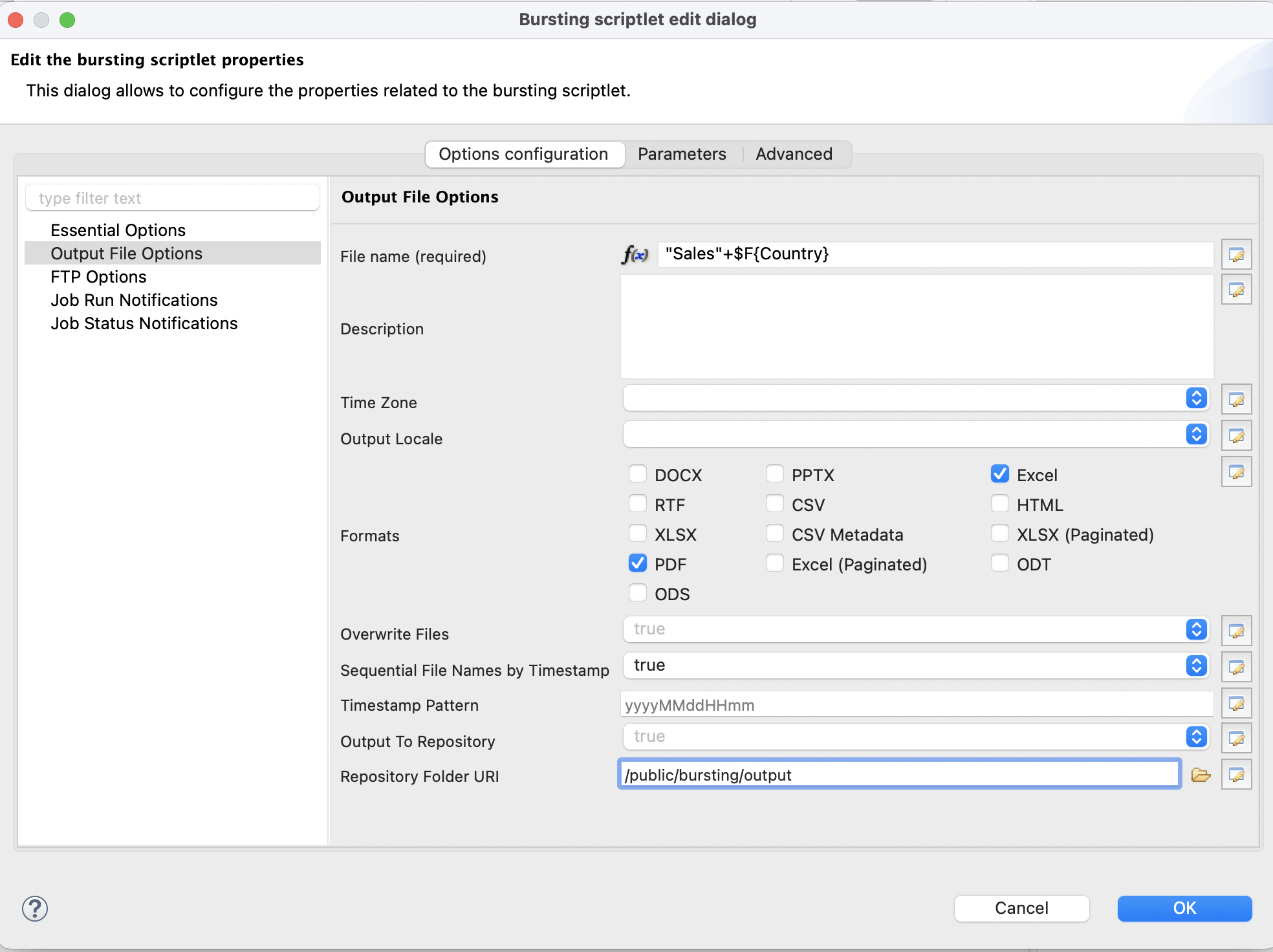
Figure 5 Adding Output File Options -
Select Job Run Notifications and enter the following information:
-
In the To field, enter the email id of the recipients, to do so:
-
Click
 to enter the expression, Edit property value dialog appears.
 -
Select Use Expression and click the expression editor.
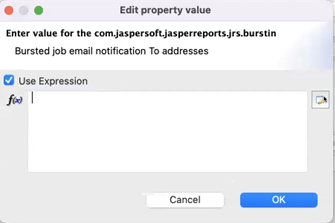
Figure 6 Edit Property Value Dialog -
Select Email Field String.
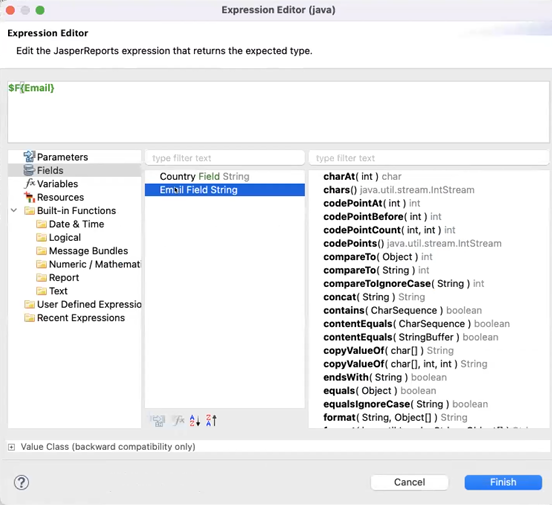
Figure 7 Expression Editor -
Click Finish.
-
Click OK.
-
-
In the Subject field, enter the subject for the mail to be sent to recipients.
-
In the Message field, type the message you want to send to recipients.
-
Click OK.
-
-
Run a bursting report.
Burst reports are created in the output folder for different countries in both formats PDF and Excel.