Adding a Date/Time Stamp to Scheduled Output
When you add a parameter named _ScheduledTime to a JRXML report design in Jaspersoft Studio, and then schedule the report to run in JasperReports Server, the output includes a date/time stamp showing when the report ran. The following procedure describes how to set up and use this parameter:
To display the date/time that the report ran
-
Open Jaspersoft Studio, and open an existing report.
-
In the Outline view, right-click Parameters, and select Create Parameter.
-
Rename the parameter
_ScheduledTime.The new parameter appears in the Outline view.
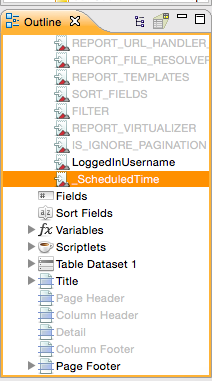
Figure 1 _ScheduledTime Parameter in Outline View -
Set the following parameter properties:
-
Class = java.util.Date
- Is for Prompting = unchecked
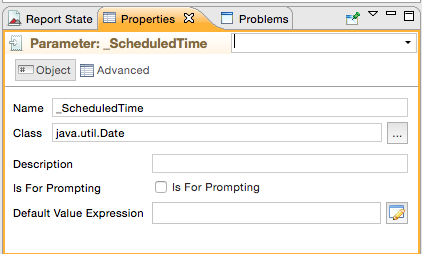 |
| Figure 2 _ScheduledTime Parameter Properties |
-
Drag the _ScheduledTime element from the Outline view to a valid location, such as the Title Band, in the Designer:
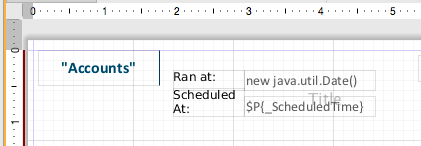
Figure 3 Report Design Includes the _ScheduledTime Parameter Element -
Now you can set other properties, such as the text color of the date/time stamp. In Properties, check Blank when Null to prevent the word null from appearing on the report when it runs unscheduled.
-
Compile the report, and upload it to JasperReports Server. For more information about uploading reports to JasperReports Server, see Accessing JasperReports Server from Jaspersoft Studio.
-
In the server, schedule the report to run immediately.
-
Open the output file.
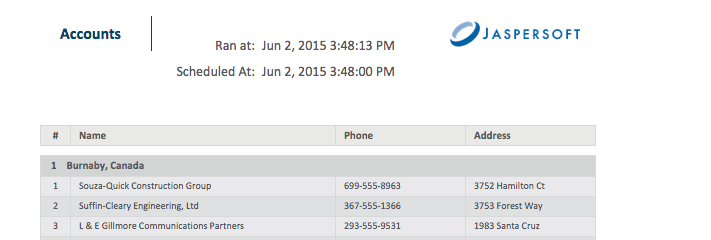 |
| Figure 4 Output Showing the Scheduled Time the Report Actually Ran |
The date and time the report actually ran appears in the output, as well as the scheduled time. In the screenshot above, there was a 13-second delay between the scheduled start time and the actual run time.