JDBC or JNDI Connections
Note
When using JDBC for data source connections, the user is responsible for managing the Azure security groups and inbound/outbound rules to allow access from the Jaspersoft server to the data source.
When connecting to Azure, it is preferable to use the data source type JDBC to make configuration easier. To connect to Azure SQL using JDBC, choose the data source type JDBC. Enter all connection information and test. Alternatively, you can choose "JNDI" and refer to a data source defined in Apache Tomcat.
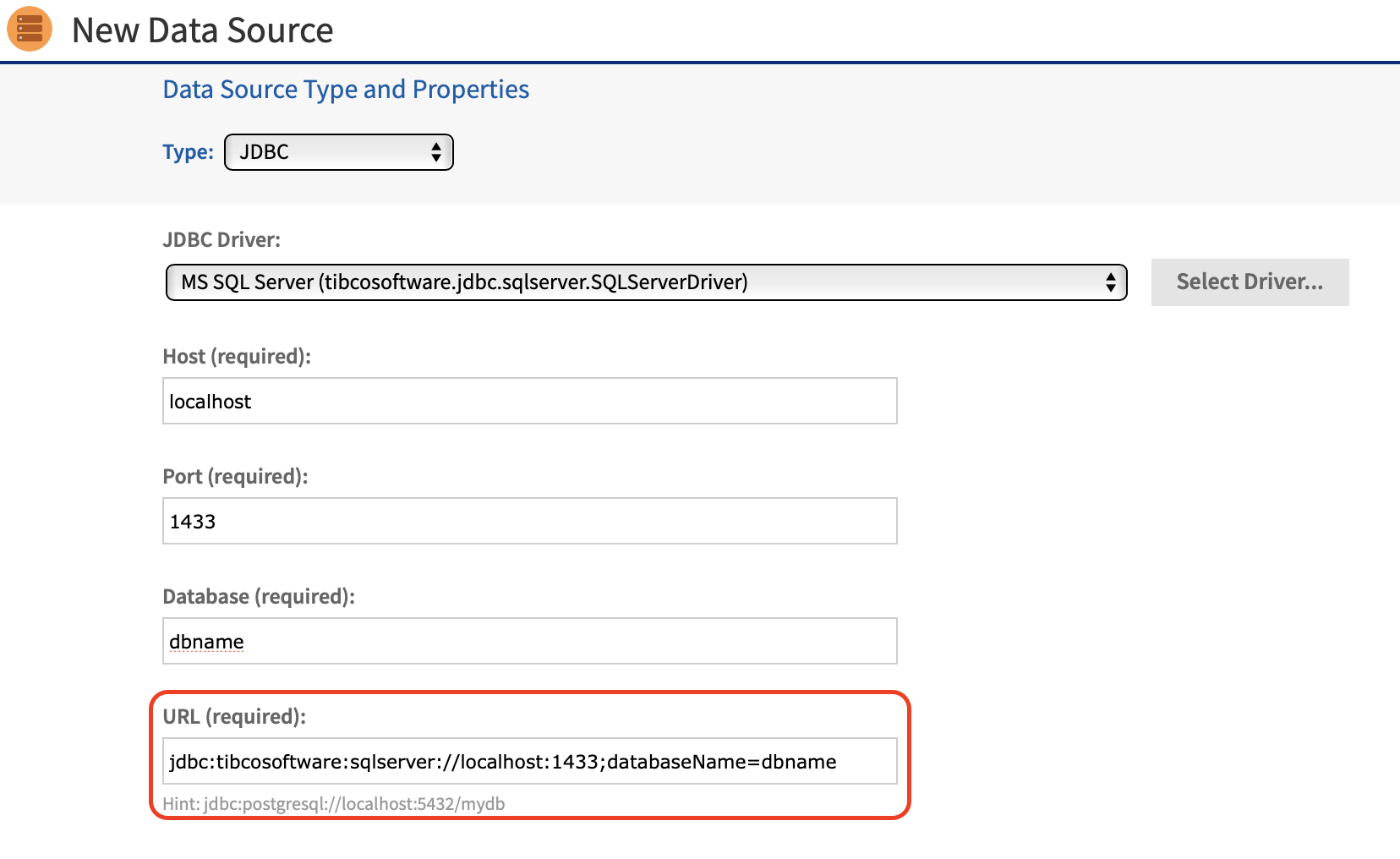
Follow these steps to connect to Azure SQL using JDBC connection:
-
From the JasperReports Server main menu, go to Create > Data Source. A New Data Source page is displayed.
-
From the Type drop-down menu, select JDBC and enter the following information:
Field Details JDBC Driver MS SQL Server (tibcosoftware.jdbc.sqlserver.SQLServerDriver) Host SQL Server server where SQL Server DS is located Port 1433 Database SQL Server database name URL It is populated with values that are entered above. User Name and Password Credentials for SQL Server DB -
Click Save.
Note
The Microsoft Azure > Settings > Connection strings > JDBC page may have other options that can be entered.